Important Note
Logic Pro X only supports 64bit Audio Units plugins, so be sure to download and install the 64bit version of your SWAM product.
Getting Started Guide
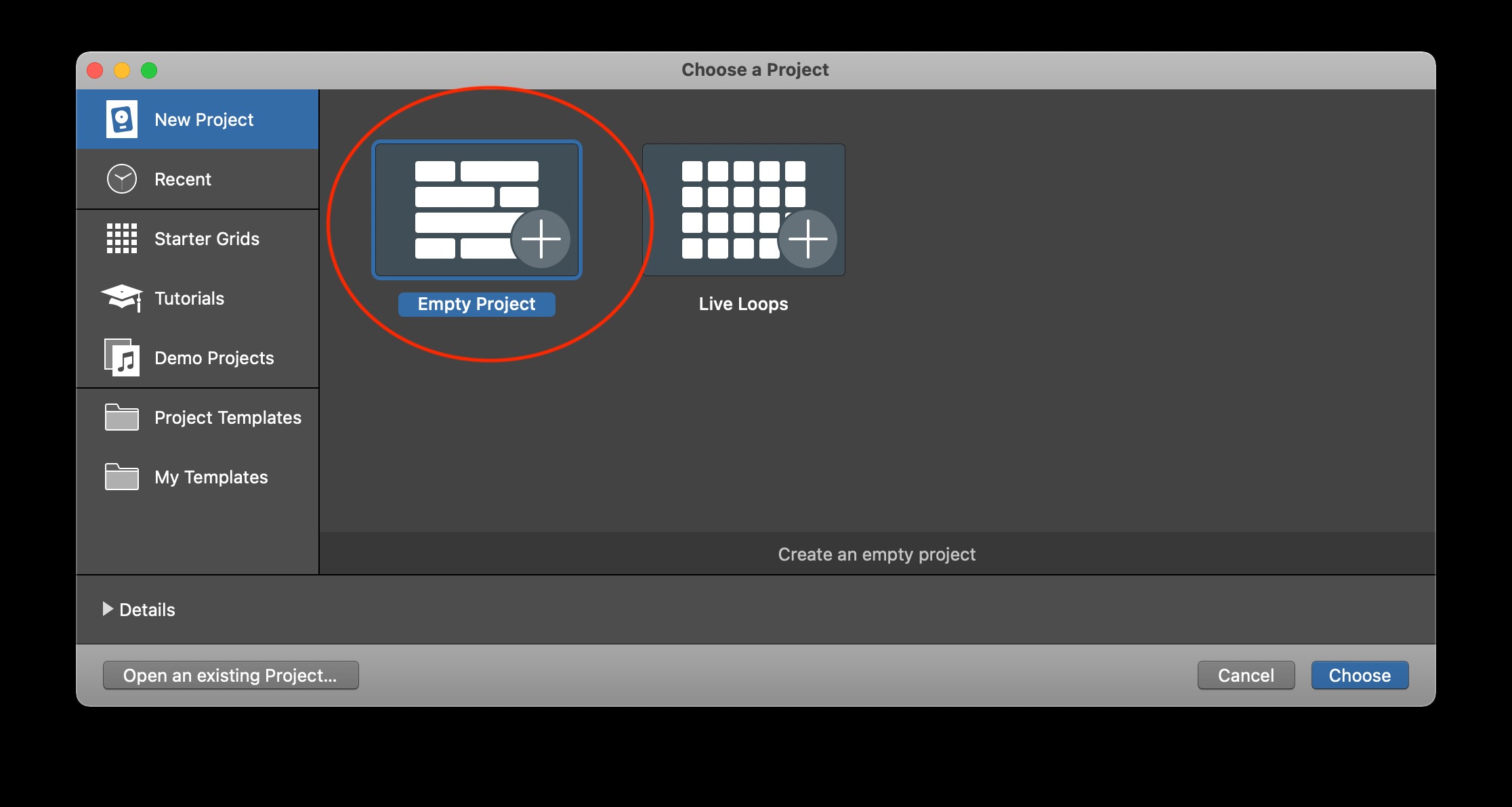
- Open Logic Pro X and create an Empty Project (Picture 1)
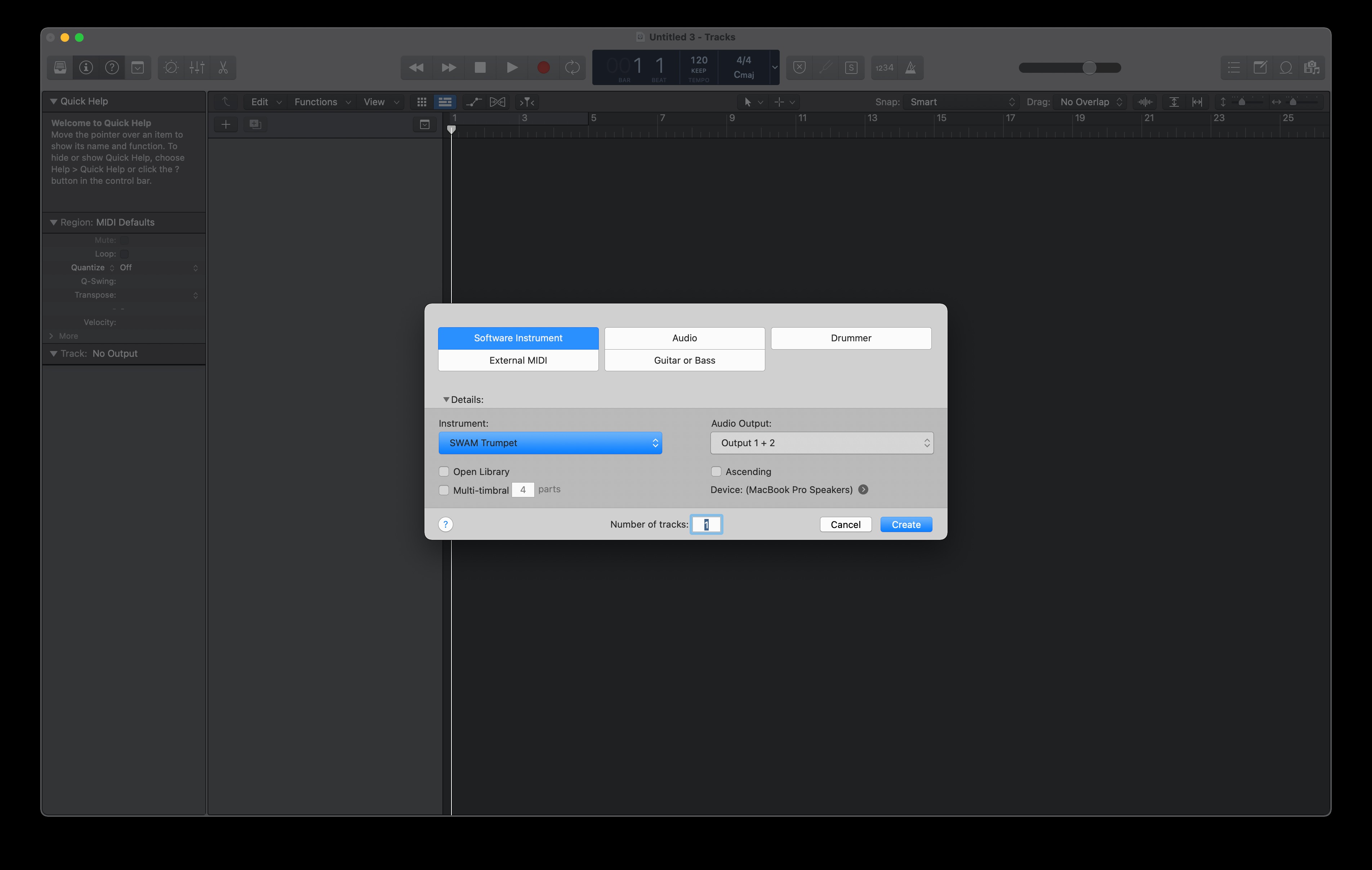
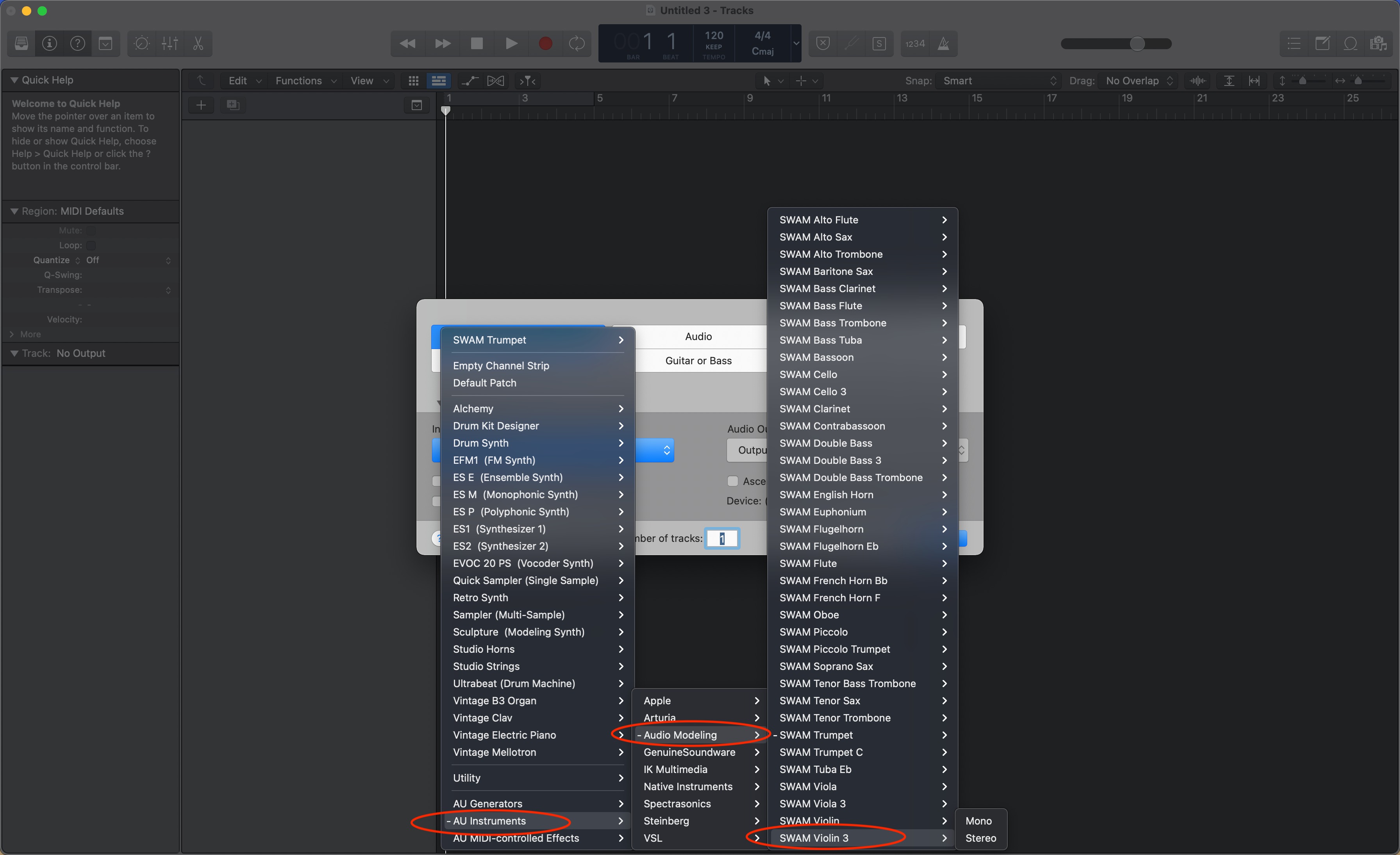
- Add a Software Instrument Track. From the Instrument dropdown menu, click on AU instruments>Audio Modeling and select the wanted SWAM instrument. Choose mono or stereo depending on whether you want to create a mono or stereo track. (Pictures 2 & 3)
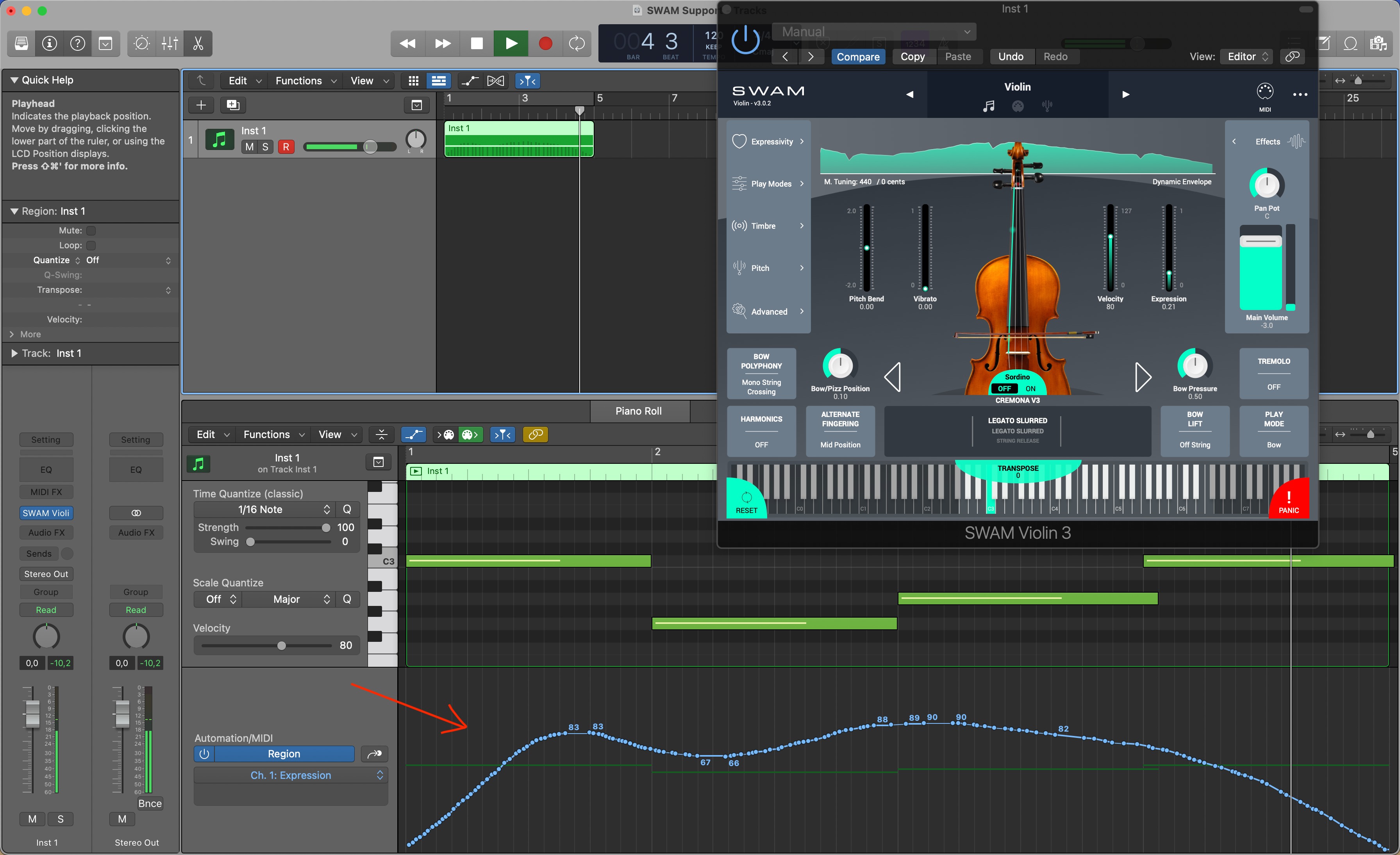
- Draw the Expression curve: double-click on a created midi region to enter the editor view, click on the automation button, select 11 - expression from the MIDI control 0-63 list, and draw your expression curve. (Pictures 04, 05 & 06)
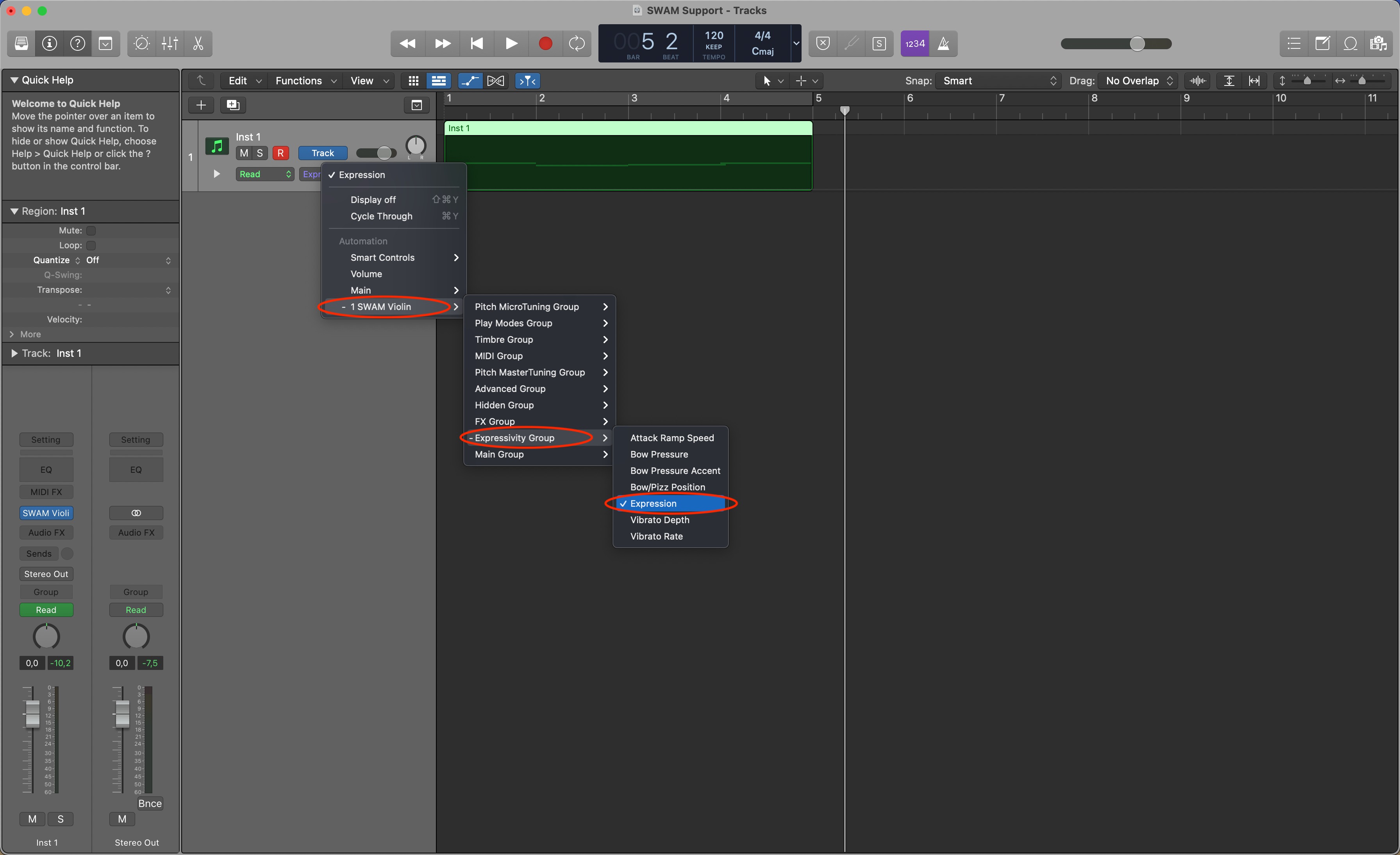
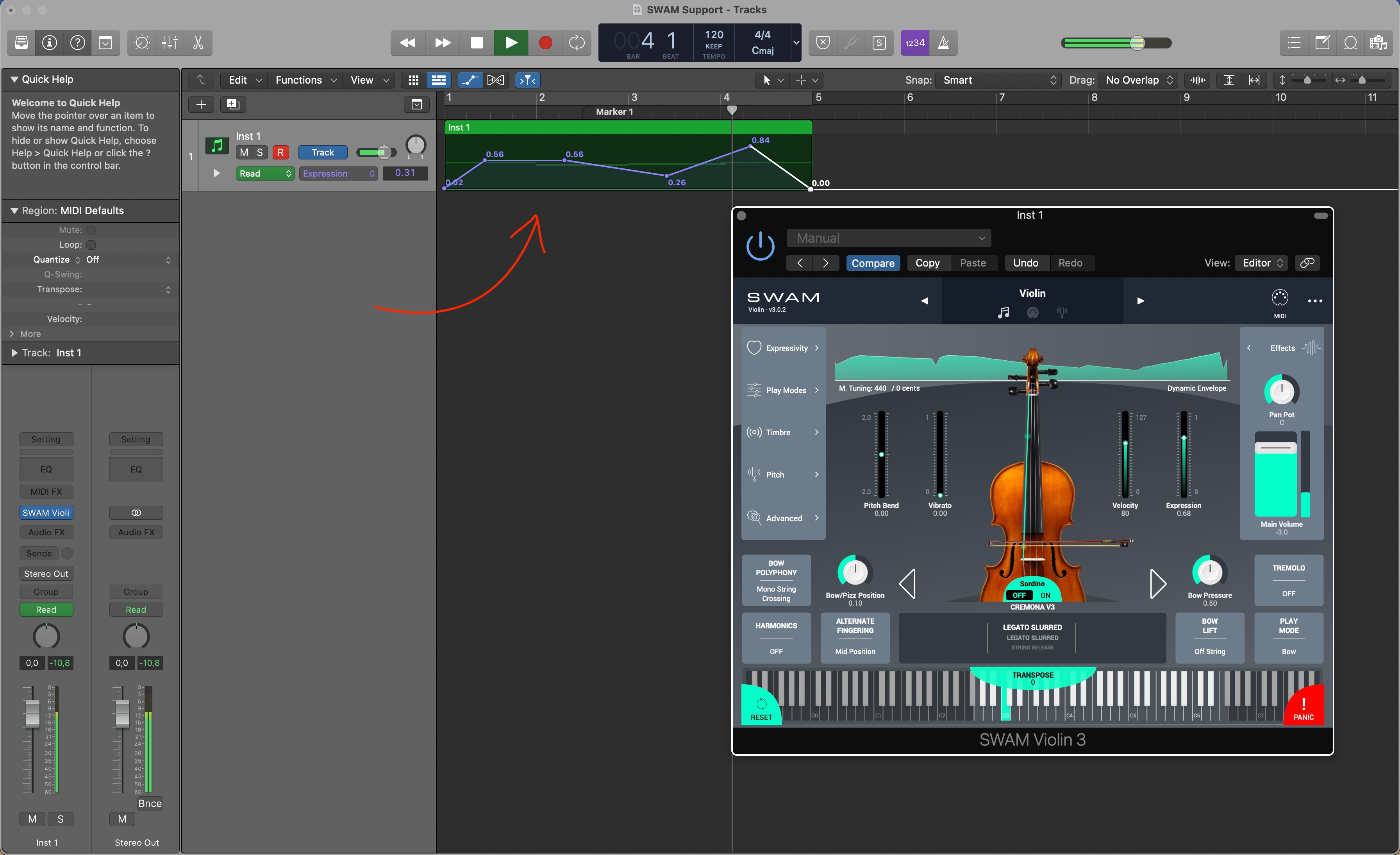
- To automate the Expression parameter (SWAM Brass and SWAM v3 versions only): press A to show the automation (mix > show automation). From the parameters dropdown menu, select SWAM instrument > Expressivity group > Expression. Double-click on the MIDI region to add automation points. (Pictures 7 & 8)
Picture 1 — Create an empty project
Picture 2 — Create new Software Instrument track
Picture 3 — Select the SWAM plug-in you want to use
Picture 4 — Enter the Editor view

Picture 5 — Select 11 - Expression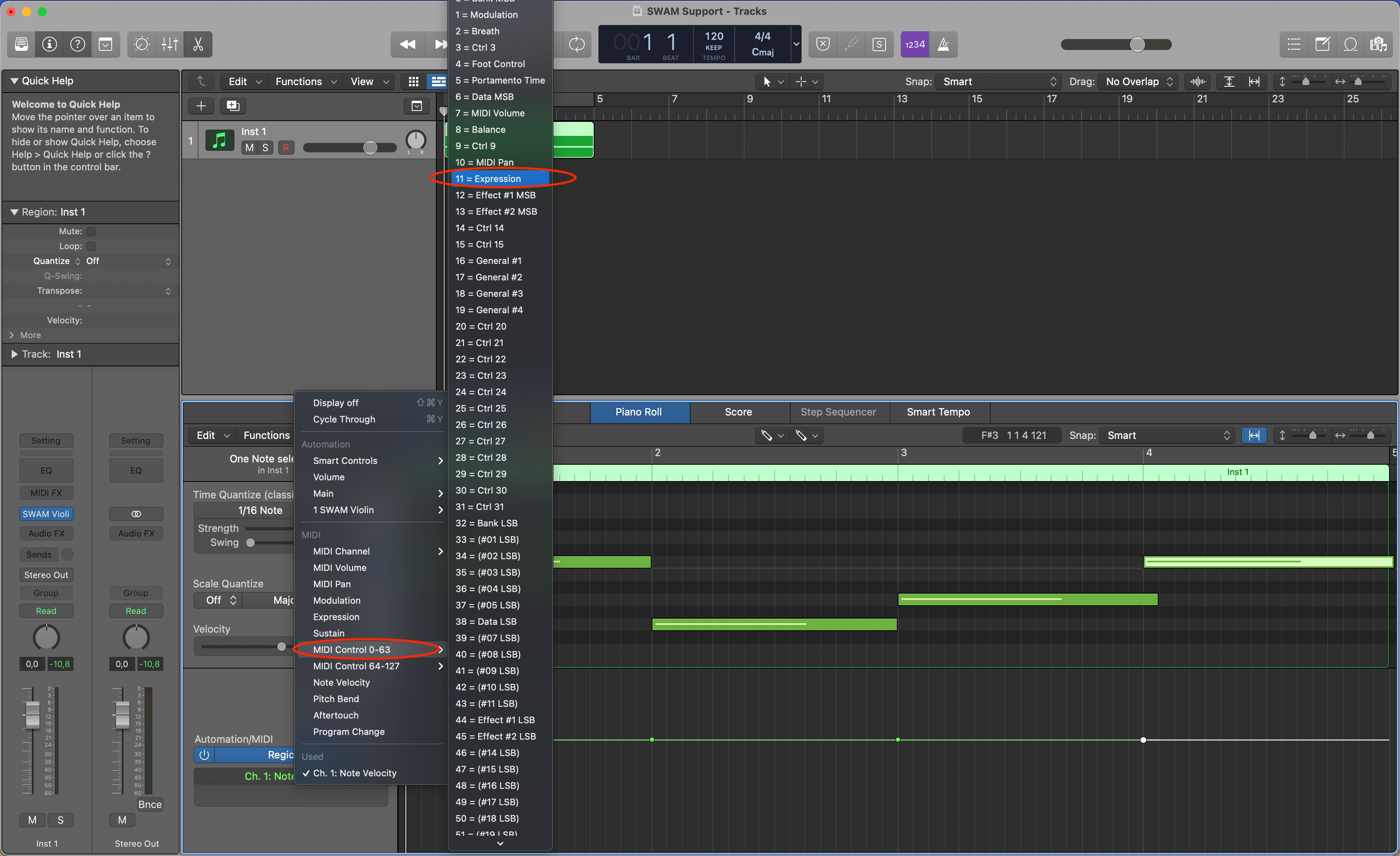
Picture 6 — Draw the Expression curve
Picture 7 — Select Expression parameter
Picture 8 — Draw the automation
Was this article helpful?
That’s Great!
Thank you for your feedback
Sorry! We couldn't be helpful
Thank you for your feedback
Feedback sent
We appreciate your effort and will try to fix the article