Note: You can use SWAM instruments even without a physical controller. In that case, you’ll need to draw expression curves (also called envelopes) or automations. If you don’t know how to achieve this, please refer to your DAW’s user manual.
Getting Started Guide
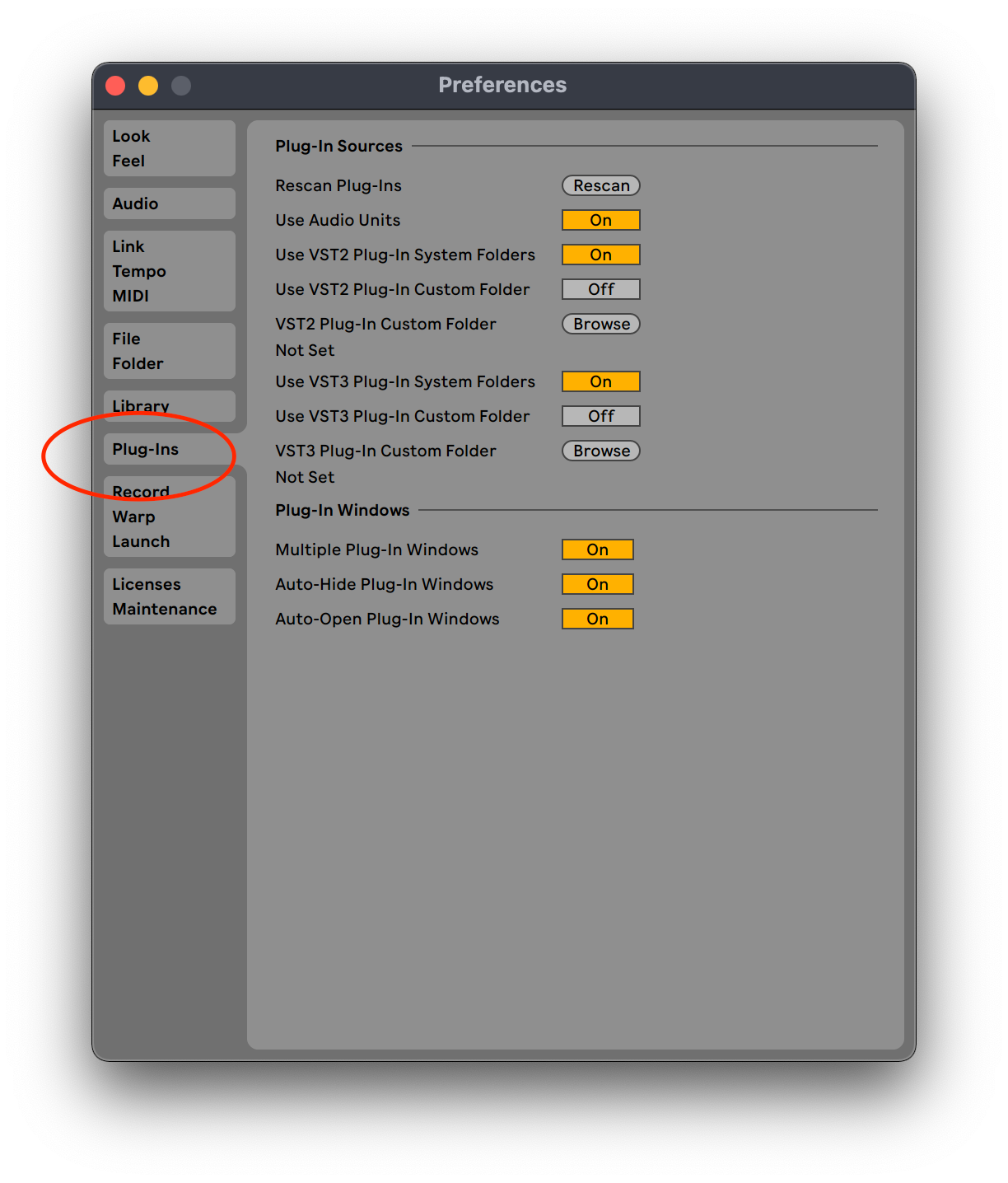
- Start Ableton Live: After having installed SWAM instruments, open Preferences, then select Plug-Ins.
- In Plug-in Sources:
- For macOS users, activate Use Audio Units for Audio Unit format.
- For VST format, activate Use VST2 Plug-in System Folder and if needed, Use VST2 Plug-in Custom Folder. Browse your VST SWAM instruments folder, then click on Rescan.
- For VST3 format, activate Use VST3 Plug-in System Folder and, if needed, Use VST3 Plug-in Custom Folder. Browse your VST3 SWAM instruments folder then click on Rescan. (Picture 1)
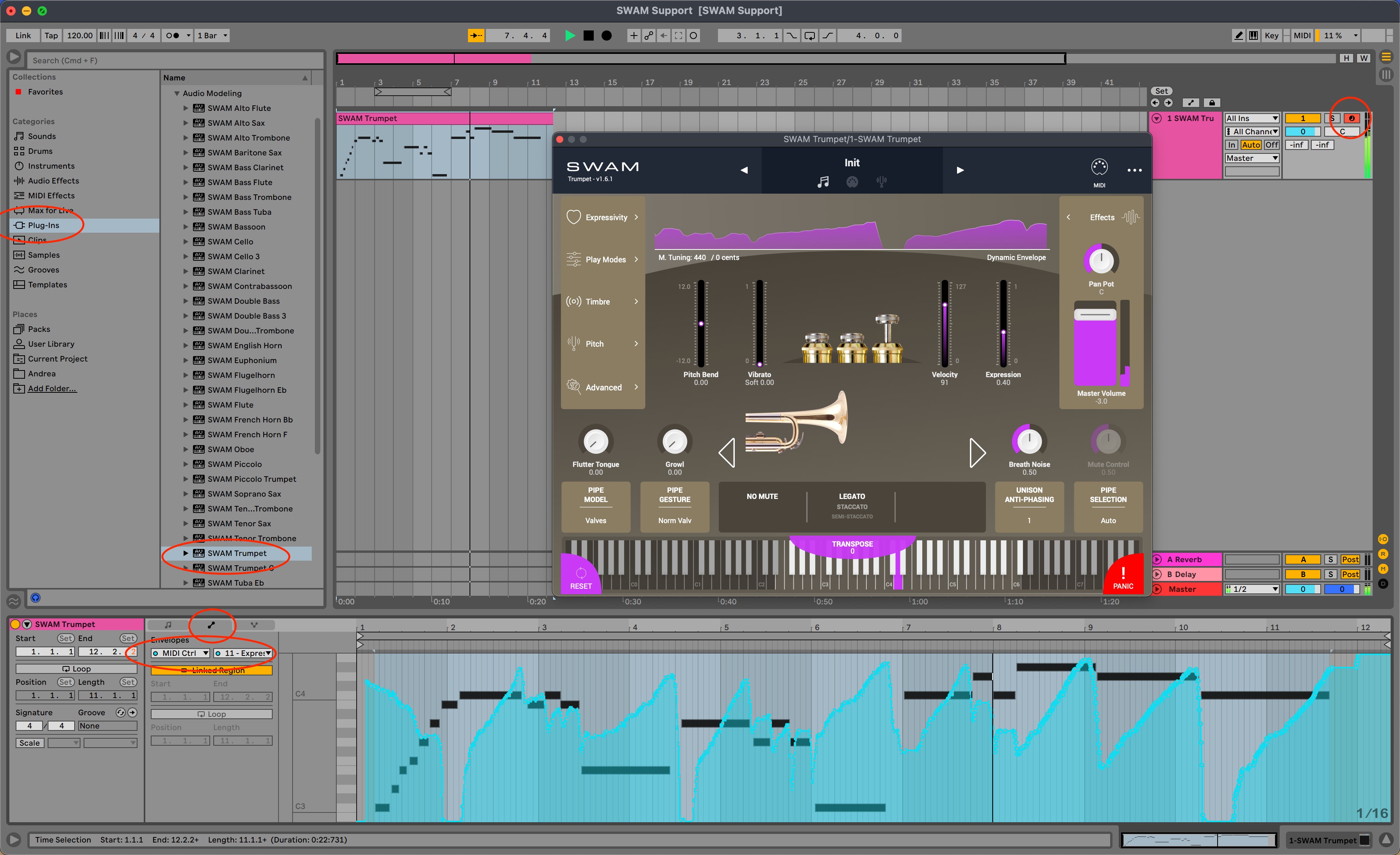
- Insert a new MIDI Track: Right-click on the main window, then on Insert MIDI Track (or Ctrl + Shift + T ) . Select this new MIDI Track.
- Select the Audio Modeling folder from Plug-ins, on the left side of the screen. Double click on the icon of your favorite plug-in to add it to the MIDI track. You can also drag and drop it. Be sure that the track's REC monitor is on to play it.
- To draw the CC11 Expression curve: Double-click on a created MIDI file and manage it on the Clip View at the bottom. Click the Envelopes tab to show the envelopes box and choose MIDI Ctrl as MIDI device to automate. Then, select CC11 to draw the expression curve. (Picture 2)
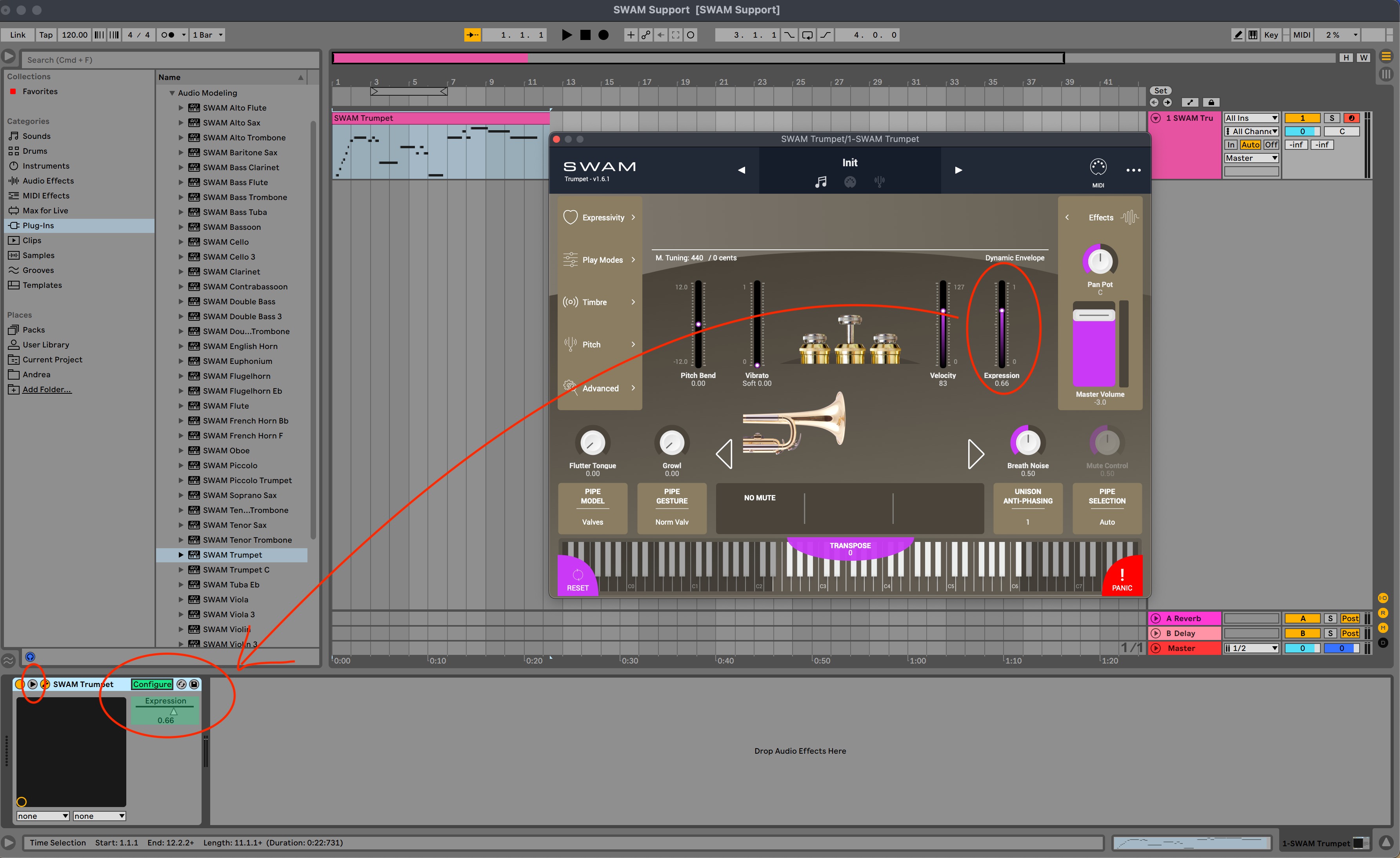
- To enable the Expression Automation (only for SWAM Solo Brass and SWAM Solo Strings V3): Double-click on the SWAM MIDI track to show the SWAM plug-in device at the bottom. Click on the arrow to fold the device's parameters. Click on the Configure button and move the expression parameter on the SWAM GUI to add and enable it. Click again on the Configure button to lock this setting. (Picture 3)
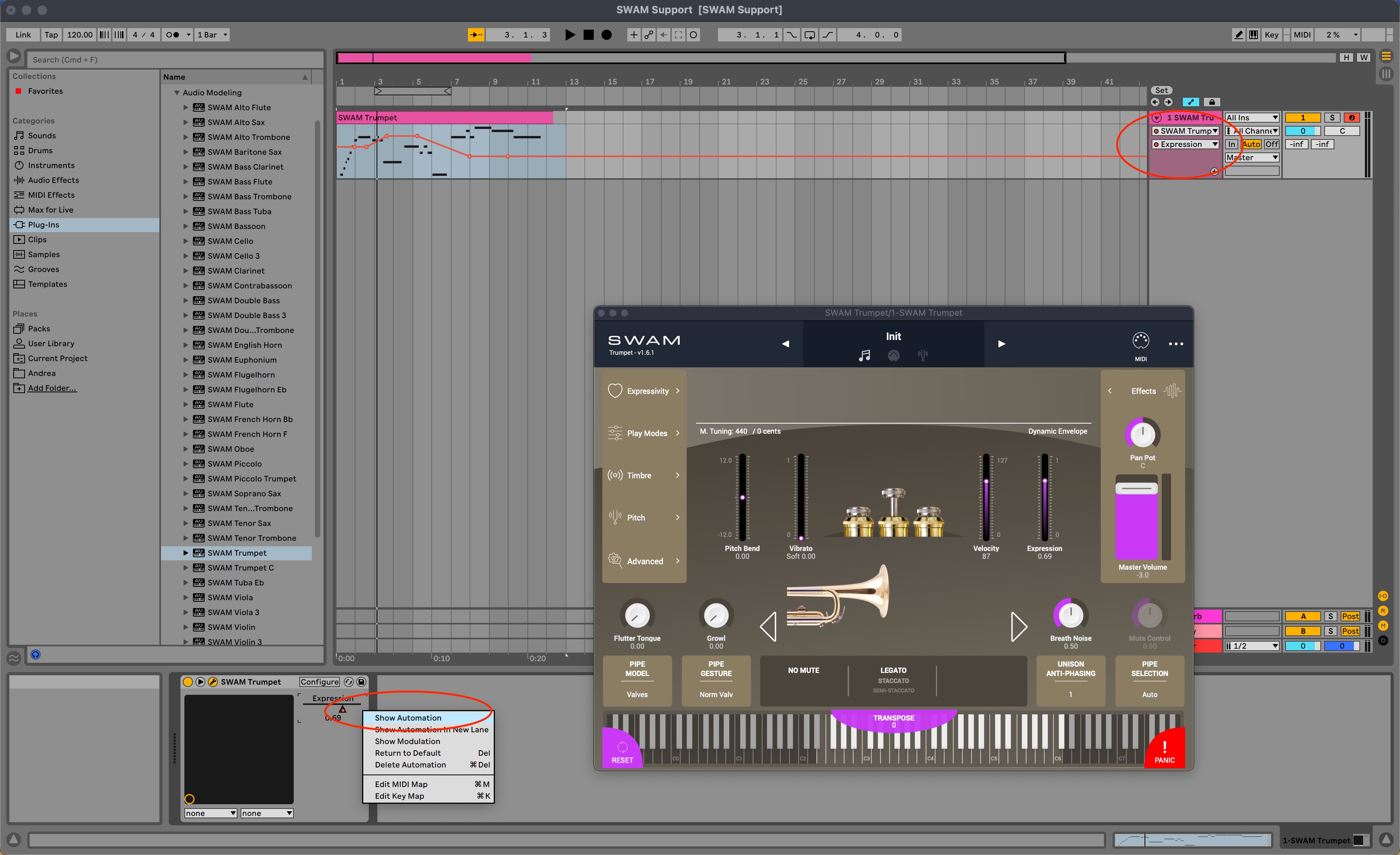
- To draw SWAM Expression Automation: Right-click on the Expression parameter and press Show Automation to draw and manage it. (Picture 4)
Picture 1 — Plug-ins Folder Settings
Picture 2 — Adding, Playing, and Drawing SWAM Instruments
Picture 3 — Enable Expression Automation
Picture 4 — Show and Draw Automation
Was this article helpful?
That’s Great!
Thank you for your feedback
Sorry! We couldn't be helpful
Thank you for your feedback
Feedback sent
We appreciate your effort and will try to fix the article