Perform live with Audio backing tracks
The Timeline is the place dedicated to automation. In the Timeline, you can attach audio backing tracks, add auto-play and auto-stop markers, and even add scene automation. On the Timeline you can have multiple audio tracks with separate audio outputs and, at the same time, use the playback feature to automate the Scene Switch at exactly the right time in the sequence. Keyboard players, Drummers, Guitar Players, really any band member can benefit from Camelot’s Timeline. You can play back music tracks hands-free and switch hardware and software instrument presets, levels, music scores, and more. You don’t even need to press the ‘Play’ button! Trigger your samples and scenes in perfect sequence, using only one pedal, or automatically play and stop tracks without the need to follow the sequencer for the entire song. The power of Camelot’s Timeline is that it allows you to perfectly structure your song in the exact order it’s meant to be played.
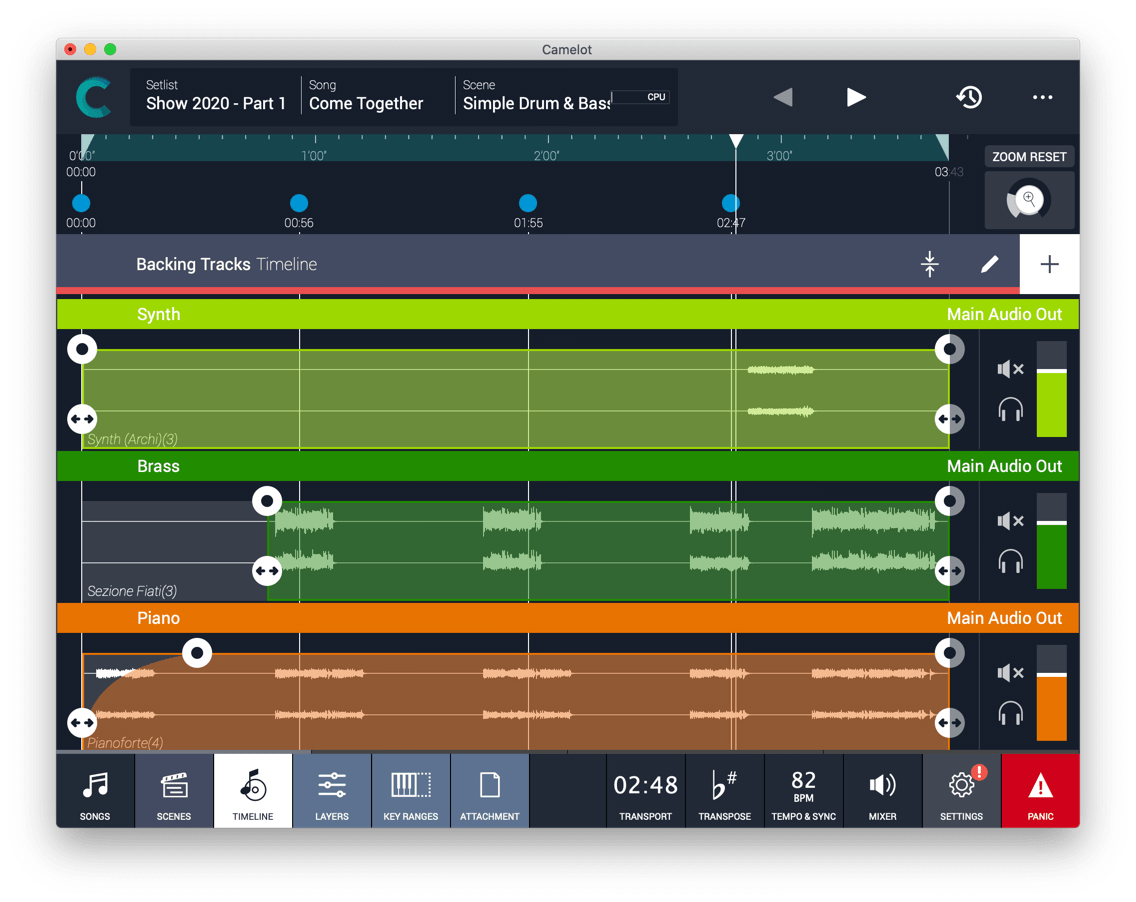
Move and edit your Audio Tracks on the Timeline
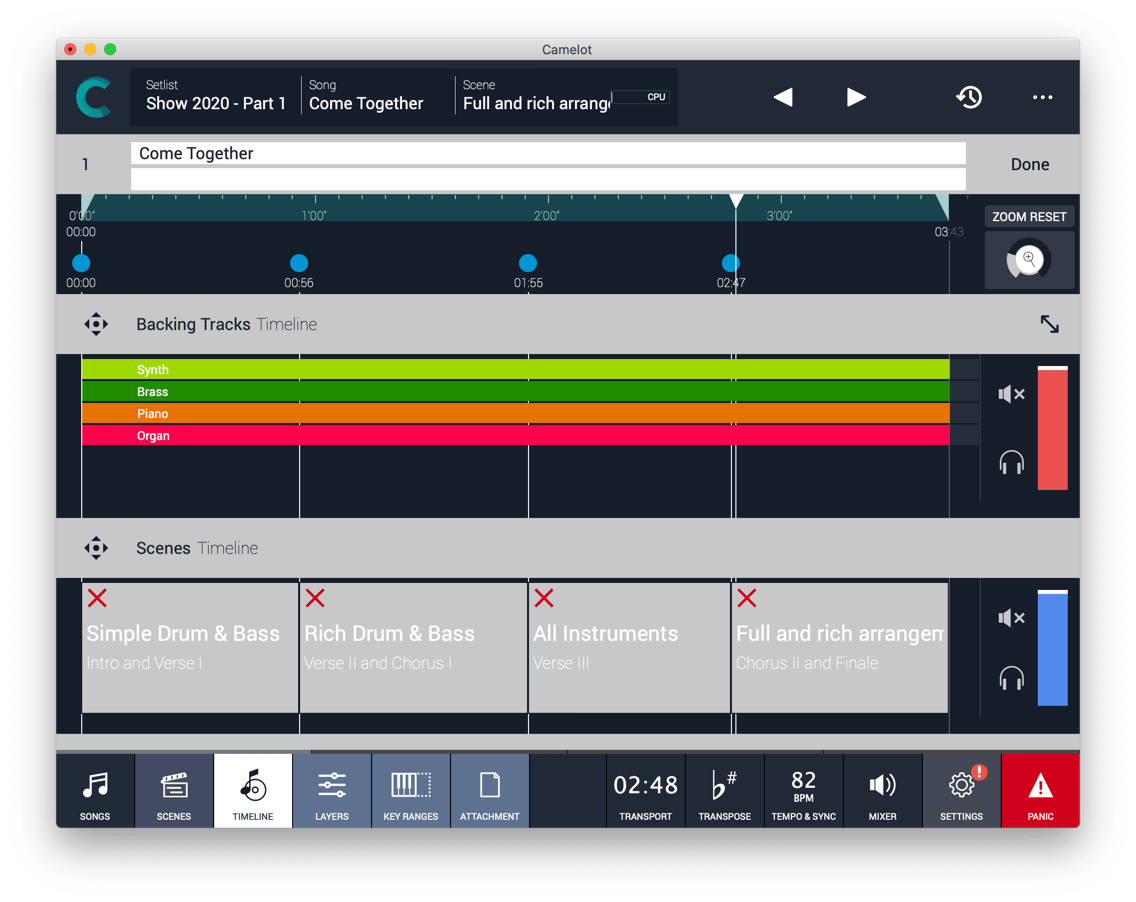
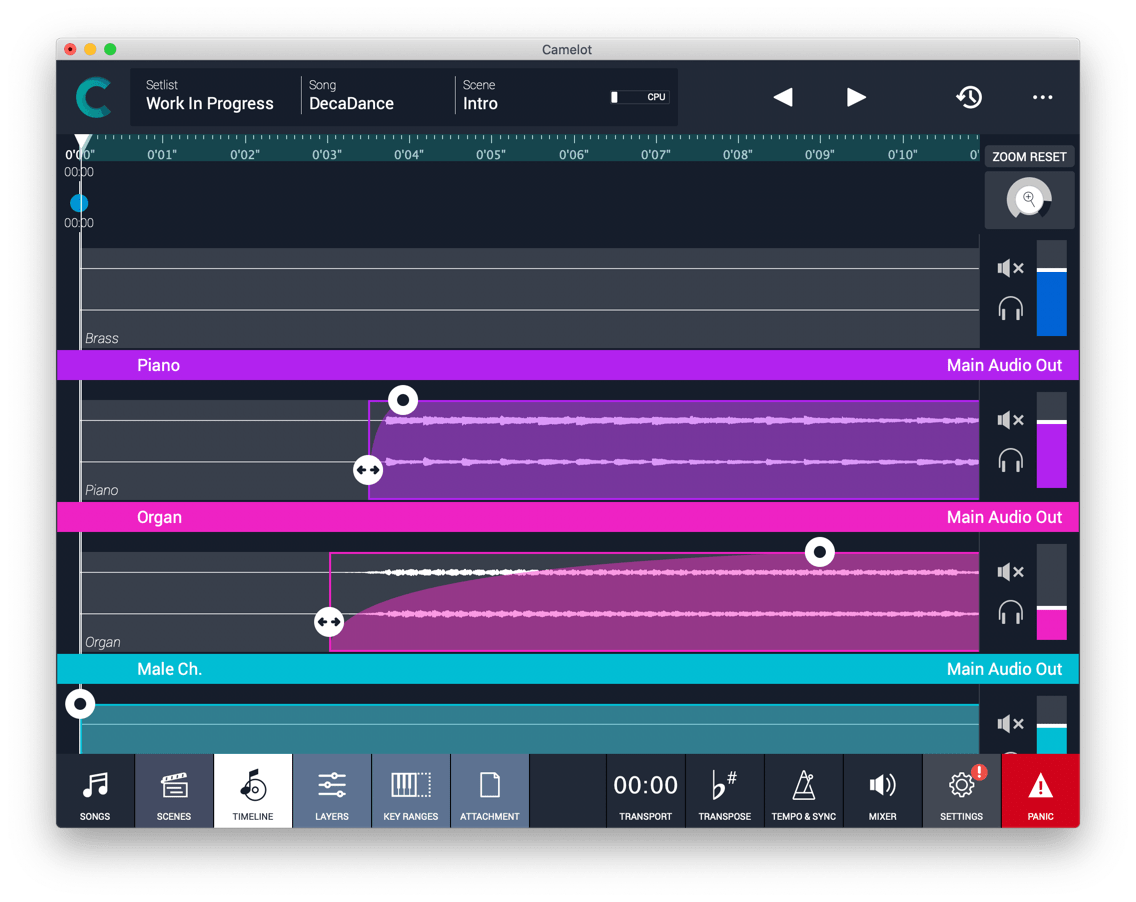
The Backing Tracks section in Camelot is powerful and very easy to use. Contrary to most DAWs where you face crowded and overly complicated menus, Camelot is intelligently designed to only provide you what you need on stage—nothing more, nothing less. On the Timeline, you can move the audio tracks, adjust the volume, apply in/out fades, and select audio output channels. Just expand the Backing Track section, drag the audio file in the correct position and that’s it! Move the handles to apply a fade in/out just in case you need it.
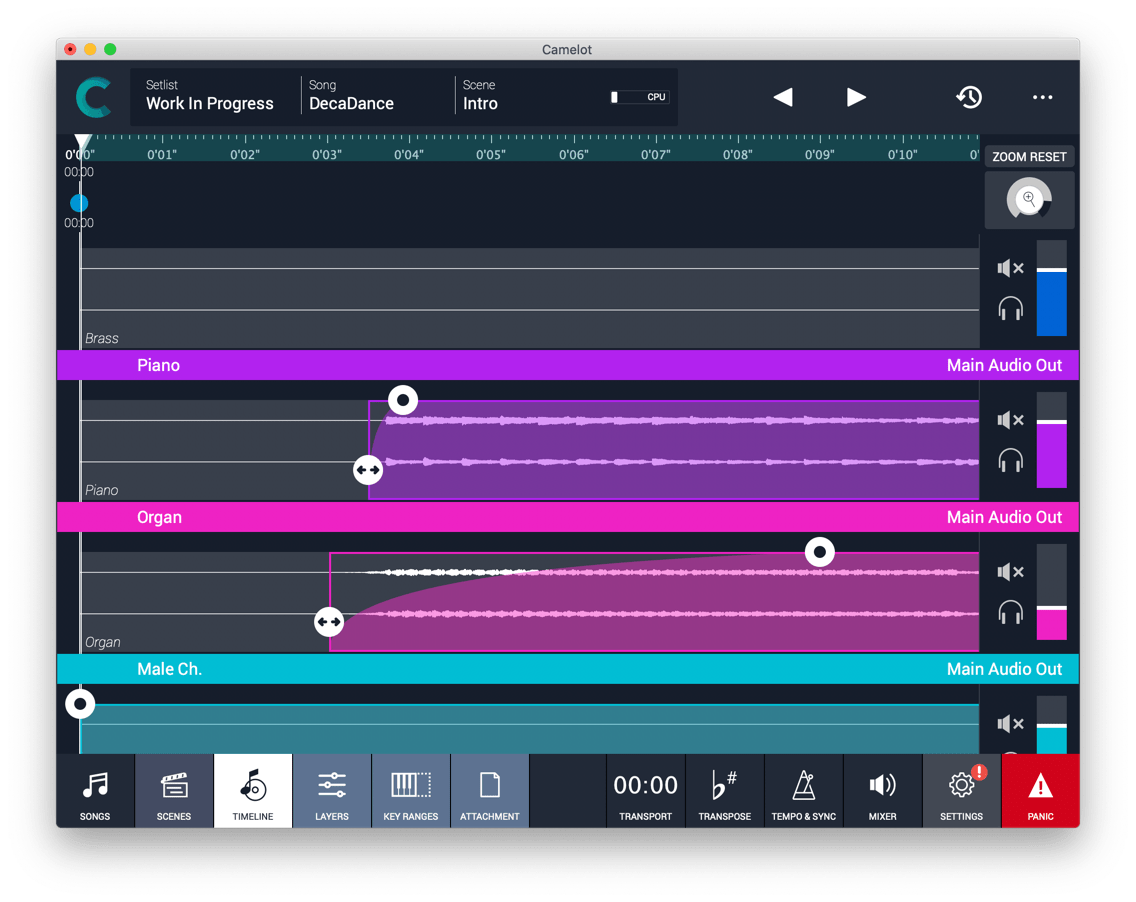
Assign an Audio Output to a Track
By default, any Backing Track is assigned to the Main Audio Output. You can always change the output used for a Backing Track by clicking on the output shown for the track in the Backing Tracks area of the Timeline view. But there’s much more to the Main Audio Output! Any track can benefit from the Master FX (compressor, EQ, delay, and reverb) available for processing audio sent to the Main Audio Output. The convenience of these onboard FX can’t be overstated. The Master FX settings apply to the entire Setlist, so you can adjust your mix at each show to ensure you sound the same with each sound system and venue as you did in your studio or during rehearsals. This straightforward workflow is great most of the time, but bypassing the Master FX is easy when you need more flexibility. Output assignments are flexible, too. The Main Audio Outs can be set to play through any available channels, and multiple outputs can be selected for each source item to provide quick monitoring of any track.
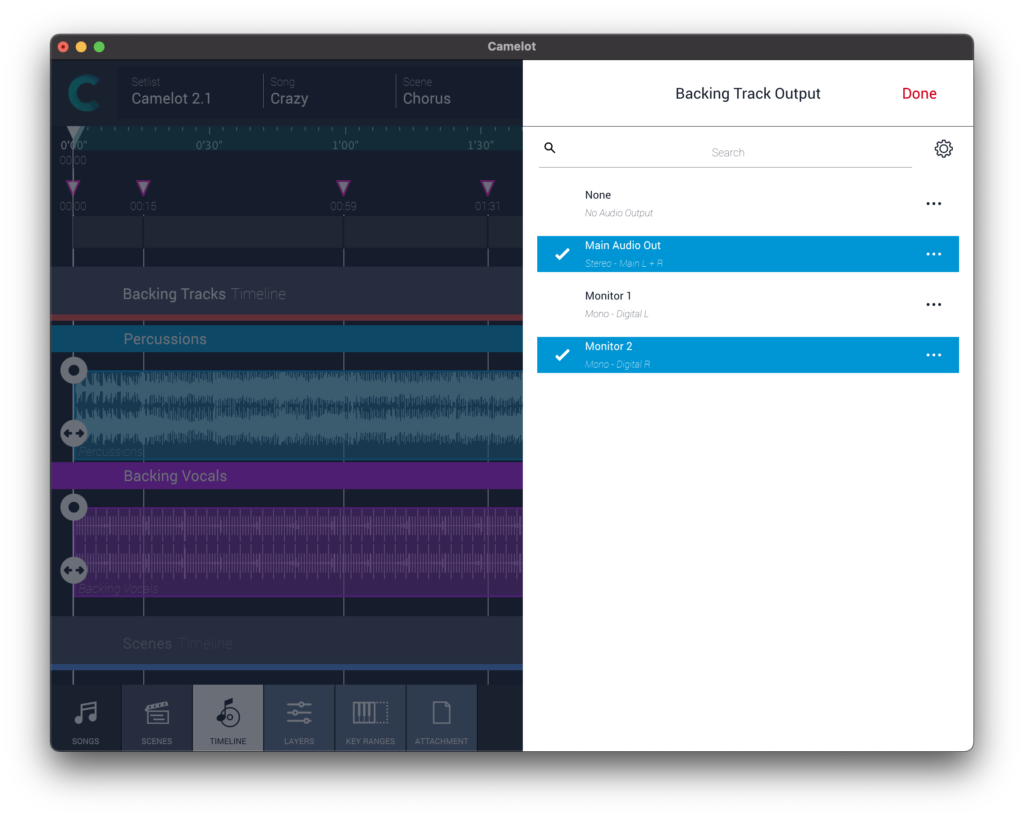
A stage tech that switches your instrument presets
Do you wish you had a stage tech to switch your instrument presets at the right time while performing? With Camelot, you can automatically switch songs and presets allowing you to focus on your performance and the connection with the audience and your bandmates. Camelot’s Timeline is not only a playback area, it allows you to keep everything under control, even automating or sequencing different events and actions. There are three sections: the Backing Tracks Timeline, the Markers Timeline, and the Scene Timeline. On the Scene Timeline, you can sequence the Scenes that are recalling your Hardware and Software instruments presets, MIDI routings, configurations, your music scores, and annotations. Program your favorite sounds on the Layer view for each Scene and using the Scene Timeline, and put the Scenes in the order you need. What happens if during the rehearsal the band decides to cut one part or add another section? No worries! In a few seconds, you can add and remove Scenes or click and drag to move them around. Camelot gives you incredible freedom and flexibility to quickly change and improve your performance show after show. Adding Scenes to the Timeline is easy. Press the “+” button on the Scene Timeline and follow the Wizard. Feel free to add any Scene more than one time if you need to recall it at a different moment.
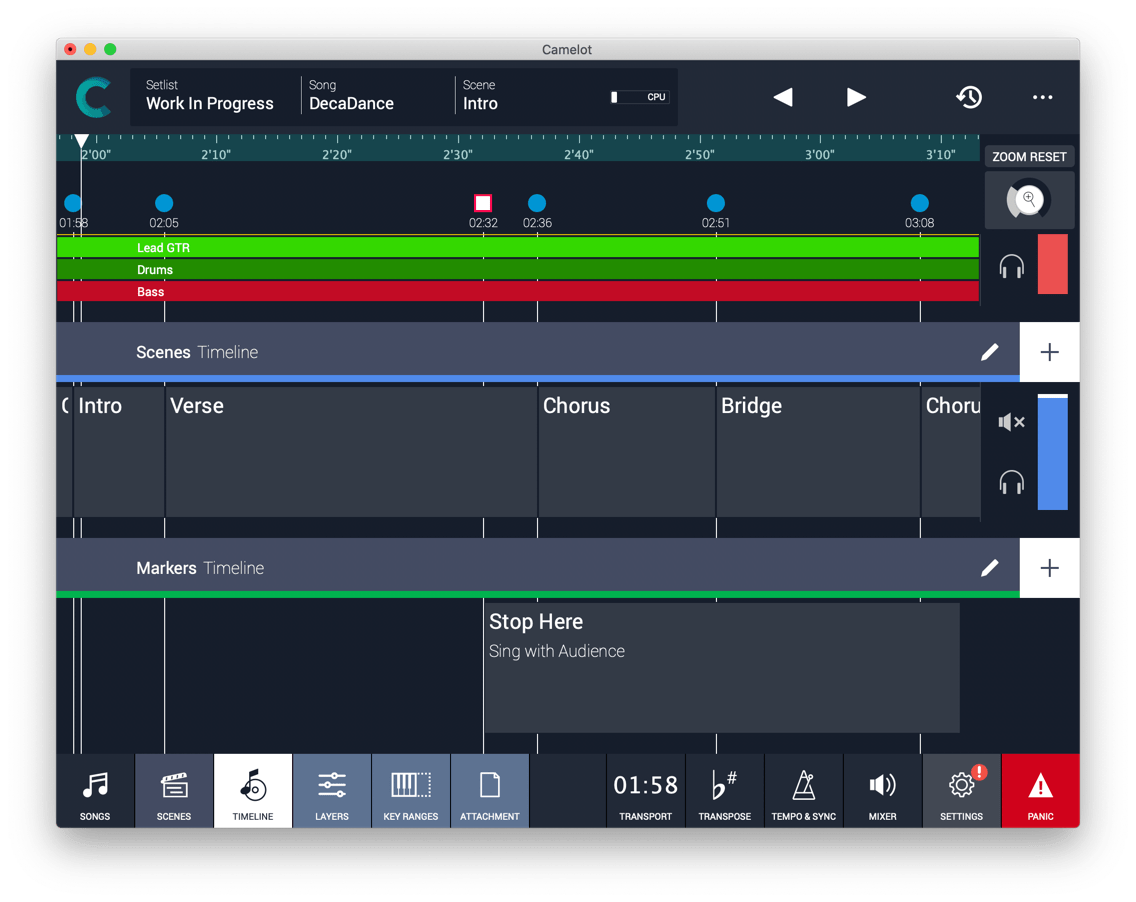 Keep everything under control with the Timeline Transport
In Camelot, there are different screens specialized in managing different aspects of your show. The Setlist & Song Manager, The Song & Scene View, The Layer & Instruments Setup, The Timeline, and The Attachment / Music Score View. If you are working in one area of Camelot, you don’t need to worry about switching and jumping from one screen to another. In the footer, you can find the Timeline Transport Panel. You can keep this panel open and accessible when you need to see the playback progress or need access to play/pause buttons. The Timeline panel layer is very handy because it also includes the prev / next event buttons. These buttons can jump to the next event placed on the timeline, so you can easily and sequentially trigger the events of your live show.
Customize the Timeline View and reorder the Backing Tracks
We know that everyone has different ways of organizing information in a way that is clear and immediate to them. For this reason, we have researched the best way to customize the Timeline area to make it familiar for anyone. The pencil buttons on the Timeline will access the edit mode where you can reorder the main groups and decide where to view each timeline group. For example, putting the Markers as the first option on the top and the Backing tracks in the bottom part of the screen. That’s not all. As you can see, the drag icon is applied to any object that can be rearranged. So, in the same way, you can rearrange the Backing Tracks order, their color, but also rename tracks, labels, annotation wherever you are.
Load Audio WAV and mp3 Files
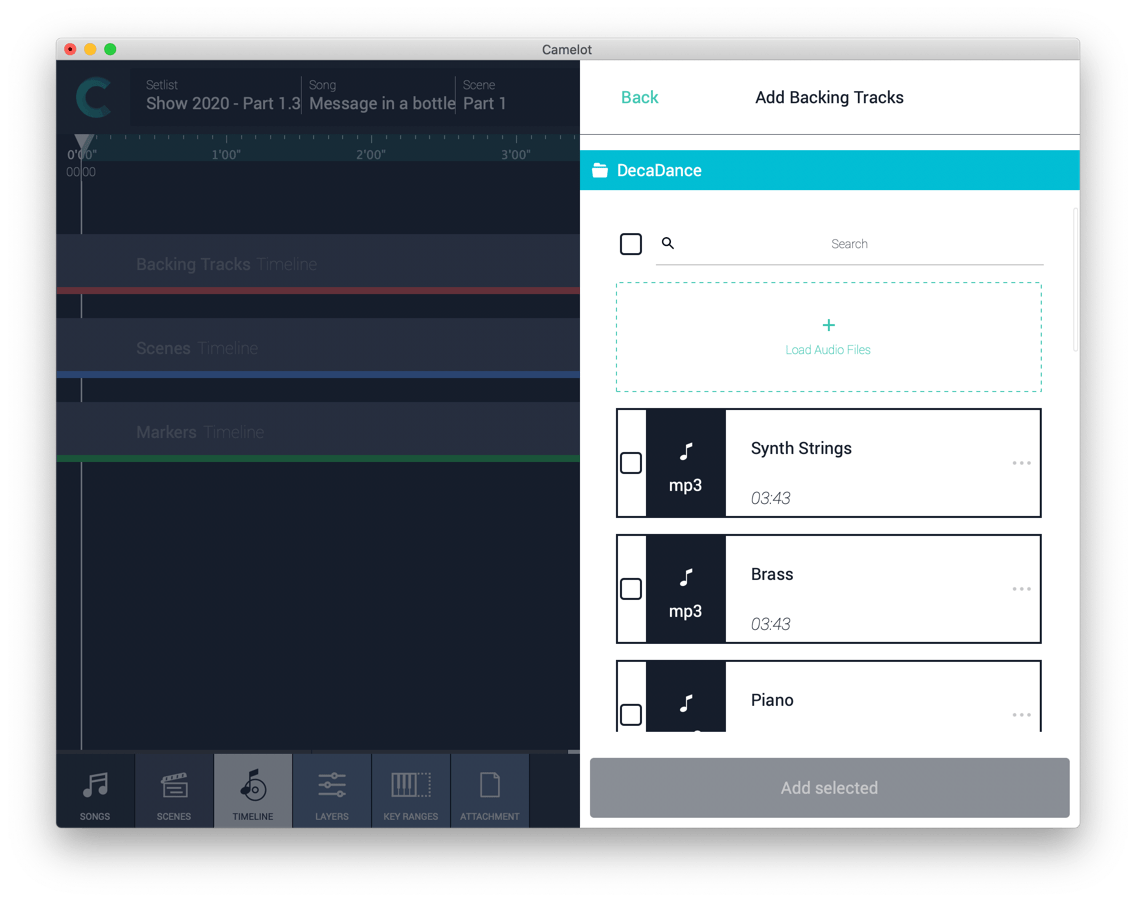
If you need audio tracks to support your live show, select the song you are playing and access the Timeline area with the dedicated footer button. Just press the “+” button on the Backing Tracks section, import the audio files, and select them to add to the Timeline. You can load WAV or MP3 audio files.
Mix the Backing Tracks
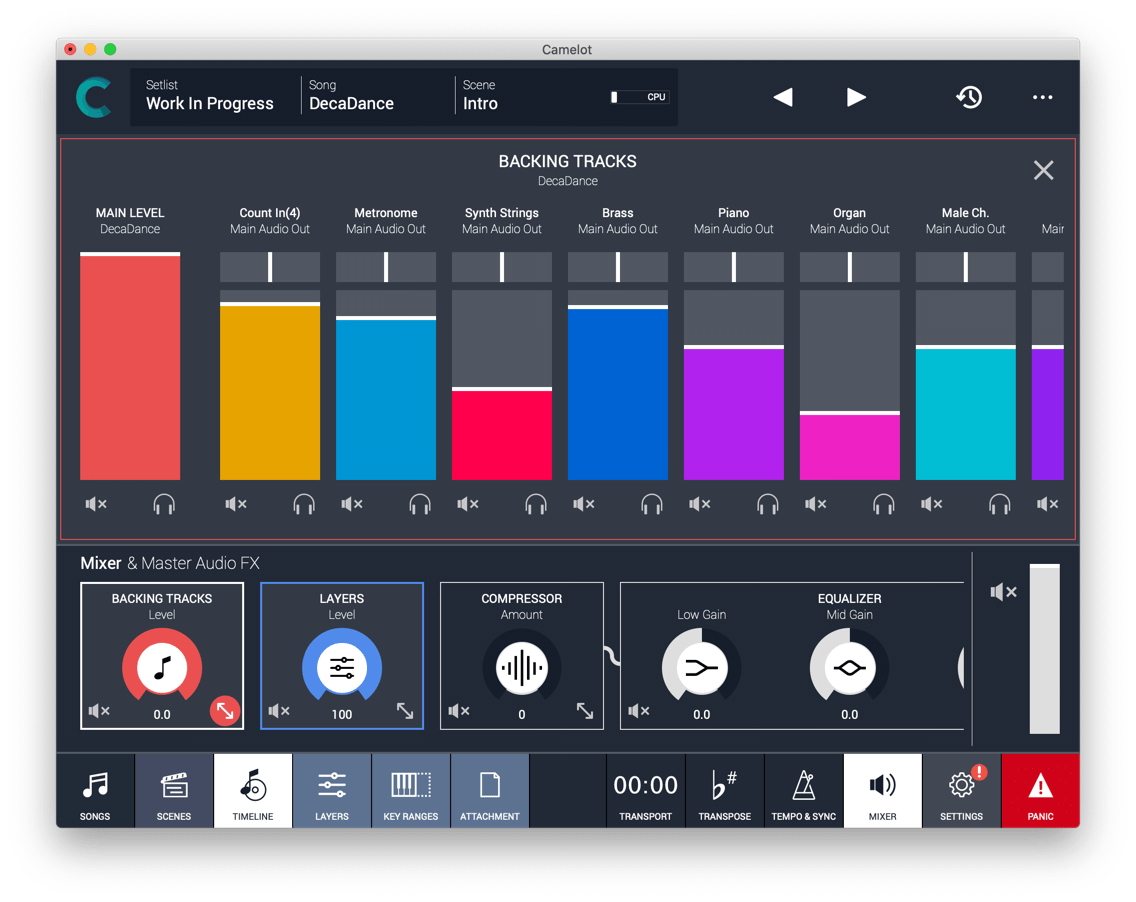
Camelot can generate sounds by playing Software Instruments and also playback Audio Files for backing tracks. The Audio Files are located in the Timeline, in the Backing Tracks Section. In this section, there are local faders that allow direct control over each track’s level, mute or solo options, and the output settings. You can also see the “big picture” on mixing with the convenient Mixer expandable panel on the footer.
Add Markers, Annotations and automate Playback and Stop
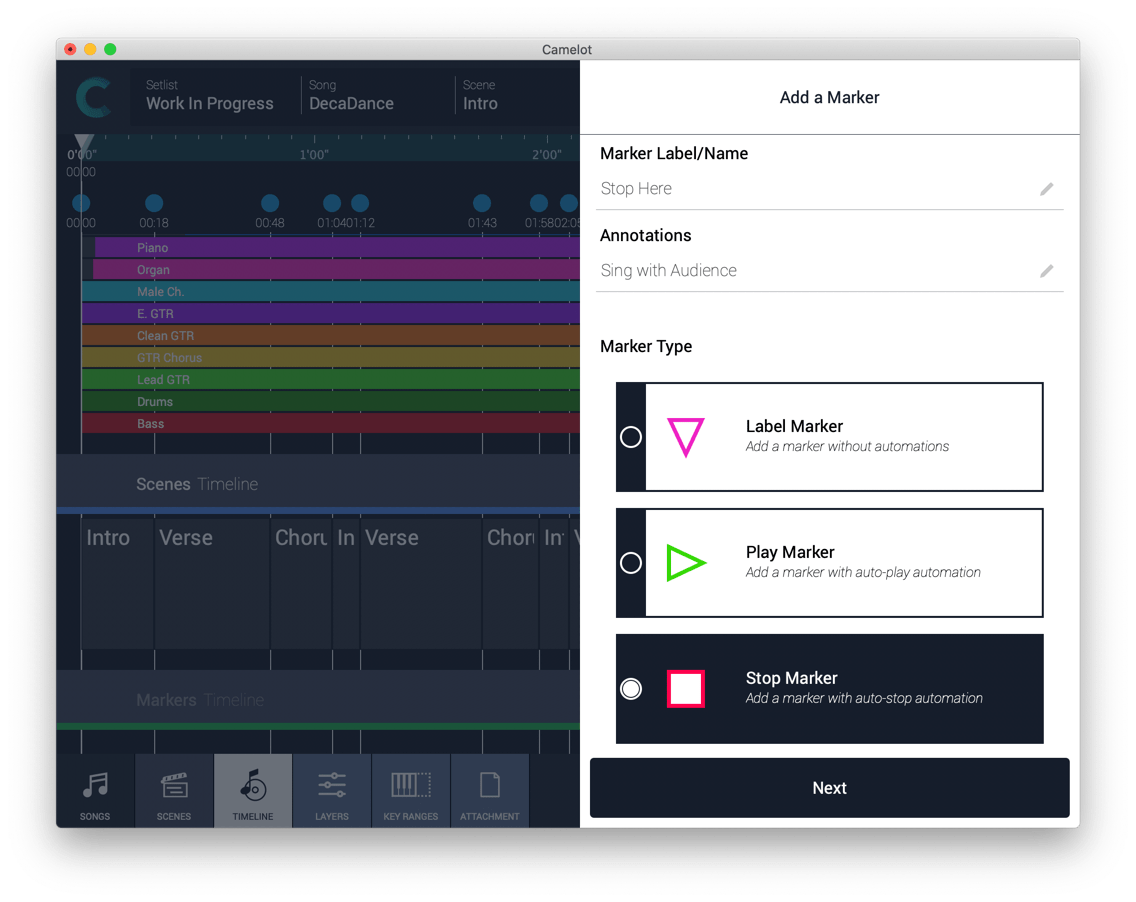
Camelot’s Timeline is not only a playback area, it’s a place that keeps everything under control and allows you to automate or sequence different events and actions. There are three sections: the Backing Tracks Timeline, the Markers Timeline, and the Scene Timeline. In the Markers Timeline, you can add markers and annotations to give you the big picture of the song’s structure and evolution. If you have audio tracks running, you can identify different song parts on the timeline to be always prepared during your performance. The Markers can be also automated and trigger playback or stop action on the transport. Adding Markers is easy. Press the “+” button in the Markers Timeline section and follow the Wizard. Feel free to add Labels and Annotations that are displayed on the Timeline.
Edit, move, refine and reach the perfection
Camelot is designed to effortlessly be performed on stage but to also be easy to edit during rehearsal. There are many different ways and solutions to playback audio files on stage. If it isn’t easy to quickly move and arrange the different song sections on the fly, you and your bandmates will be quickly frustrated and you’ll be forced to work offline during the pre-production phase. With Camelot, you can quickly and easily move the scene automation, markers, or auto-play and auto-stop events during your rehearsals and refine it show after show. Just drag the Scene and Markers flag handles on the Song ruler, then press the pencil edit button to remove them quickly. You can also add annotations, change color, or make them more visible. Double click or tap the markers flag to access the full info and edit panel.
Automatically load and play the next Song
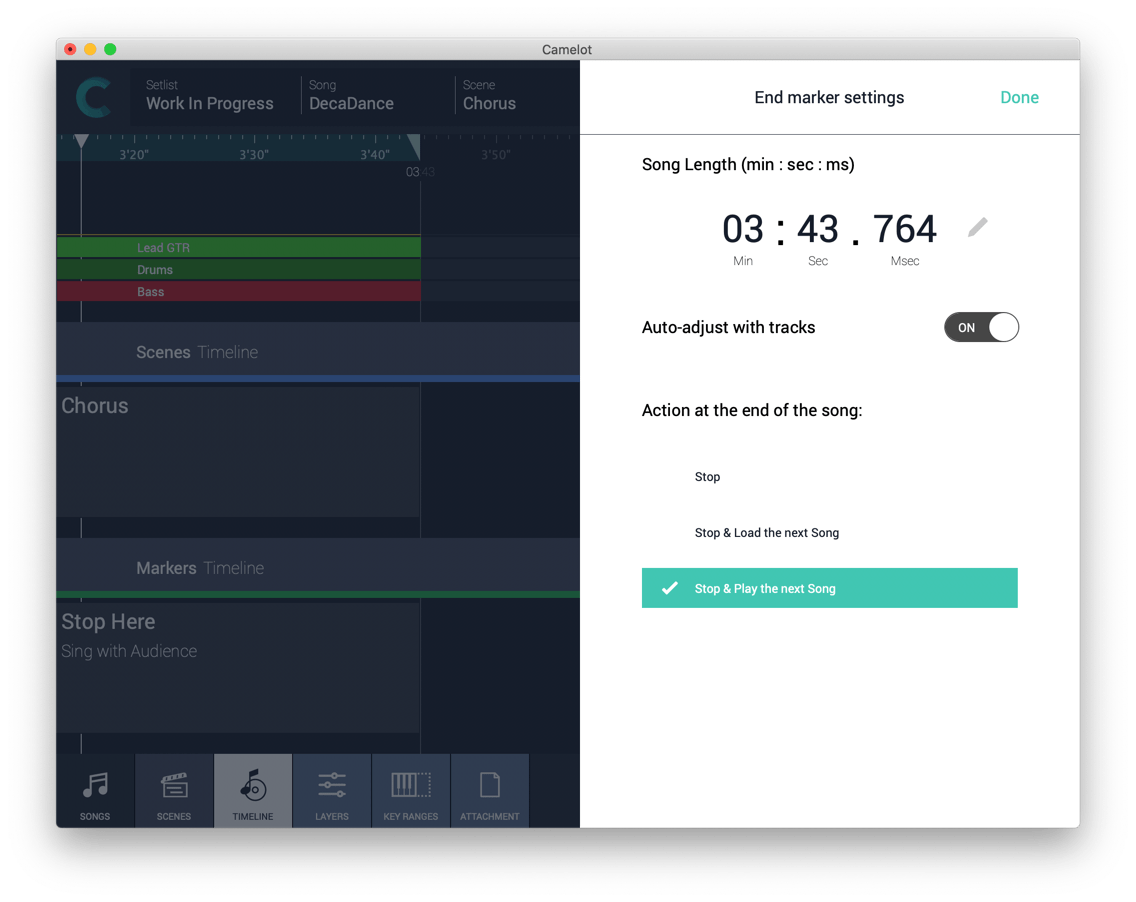
Automating your live show is addictive ? The more you explore areas of your show that can be automated, the more you desire a better Show and with less stress and less real-time management. After listening to many user suggestions, we decided to introduce automation at the end of each Song. So when the Song playback reaches the end marker, you can decide to stop, load the next song, or Autoplay the next Song. Setting up this automation is easy—just double click or tap the end marker and select the desired option.
Map the Playback and transport buttons to an external pedal
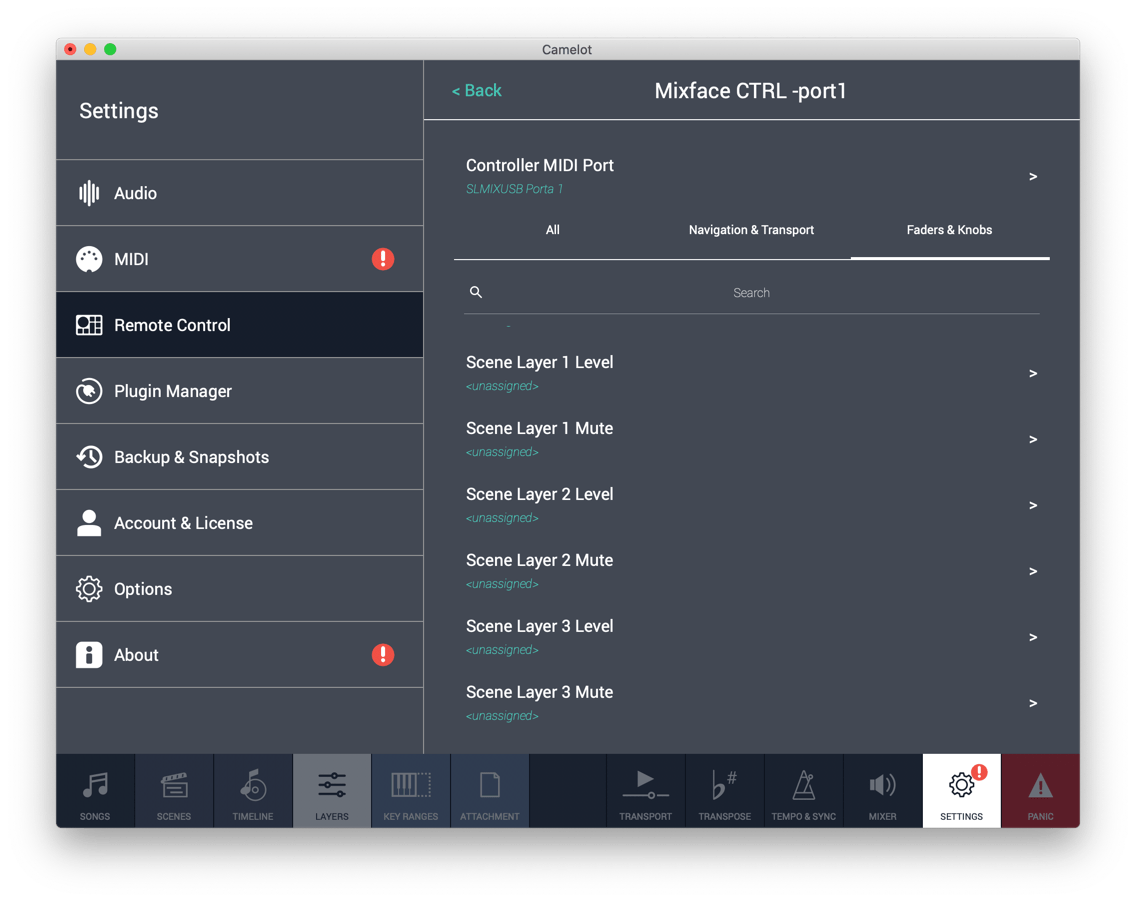
Most requested feature—hands-free sound switch, play/stop sequence, music score next page. Keeping your hands only on your instruments couldn’t be easier. The Timeline Transport Controls can be easily assigned to a pedal, a MIDI controller, computer keyboard keys, or a Bluetooth page switcher. Play, pause, stop, the previous event, and the next event can be mapped from the Main Settings on Remote Controls section. Just create or define a controller and edit it.
Was this article helpful?
That’s Great!
Thank you for your feedback
Sorry! We couldn't be helpful
Thank you for your feedback
Feedback sent
We appreciate your effort and will try to fix the article