All your Songs in one place
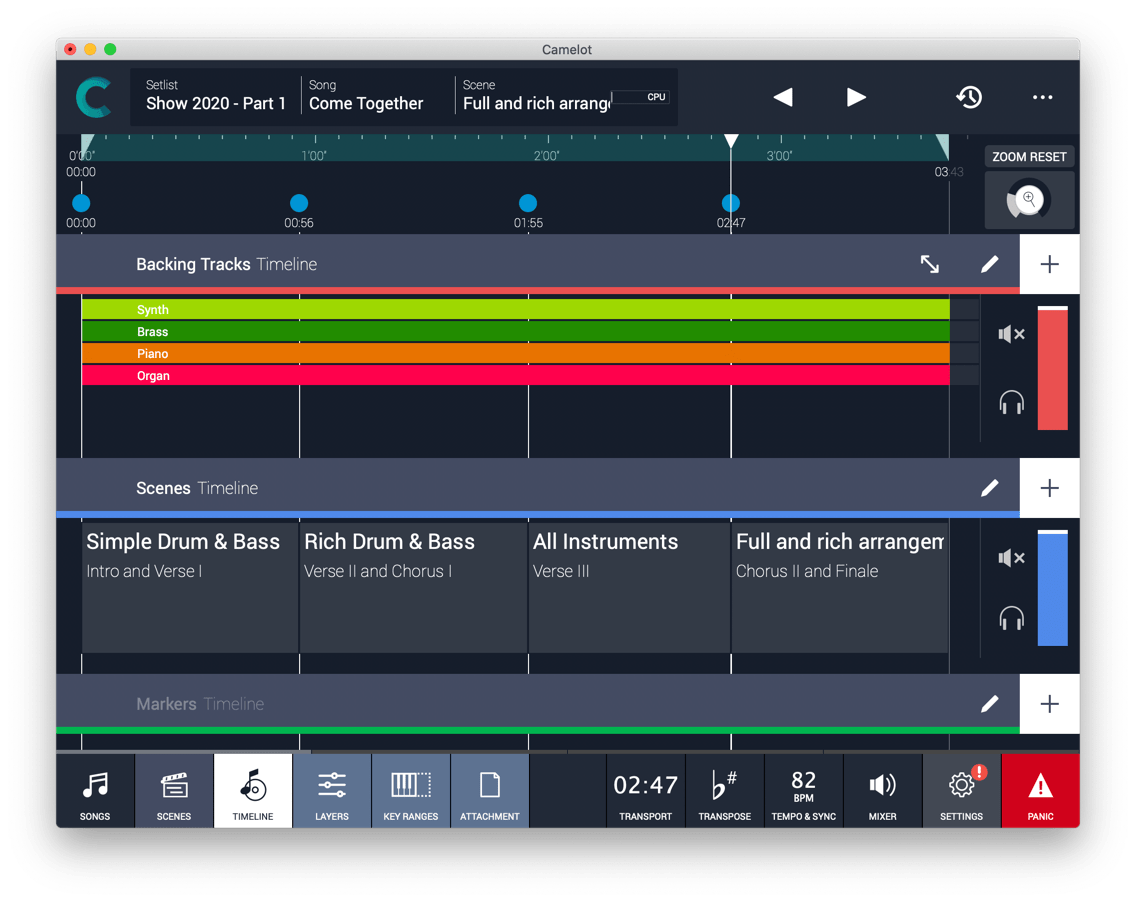
Camelot is an application created to address the most complex live performance needs with a simple and guided workflow. What in the past could only be achieved with a complex setup of different applications and devices connected together, Camelot acheives in one convenient and beautifully designed workstation. The Song in Camelot collects all of your Hardware Instruments Configurations & MIDI Routing, Software Instruments & FX instances, Music Scores and Audio Backing Tracks.
Drag&Drop Management
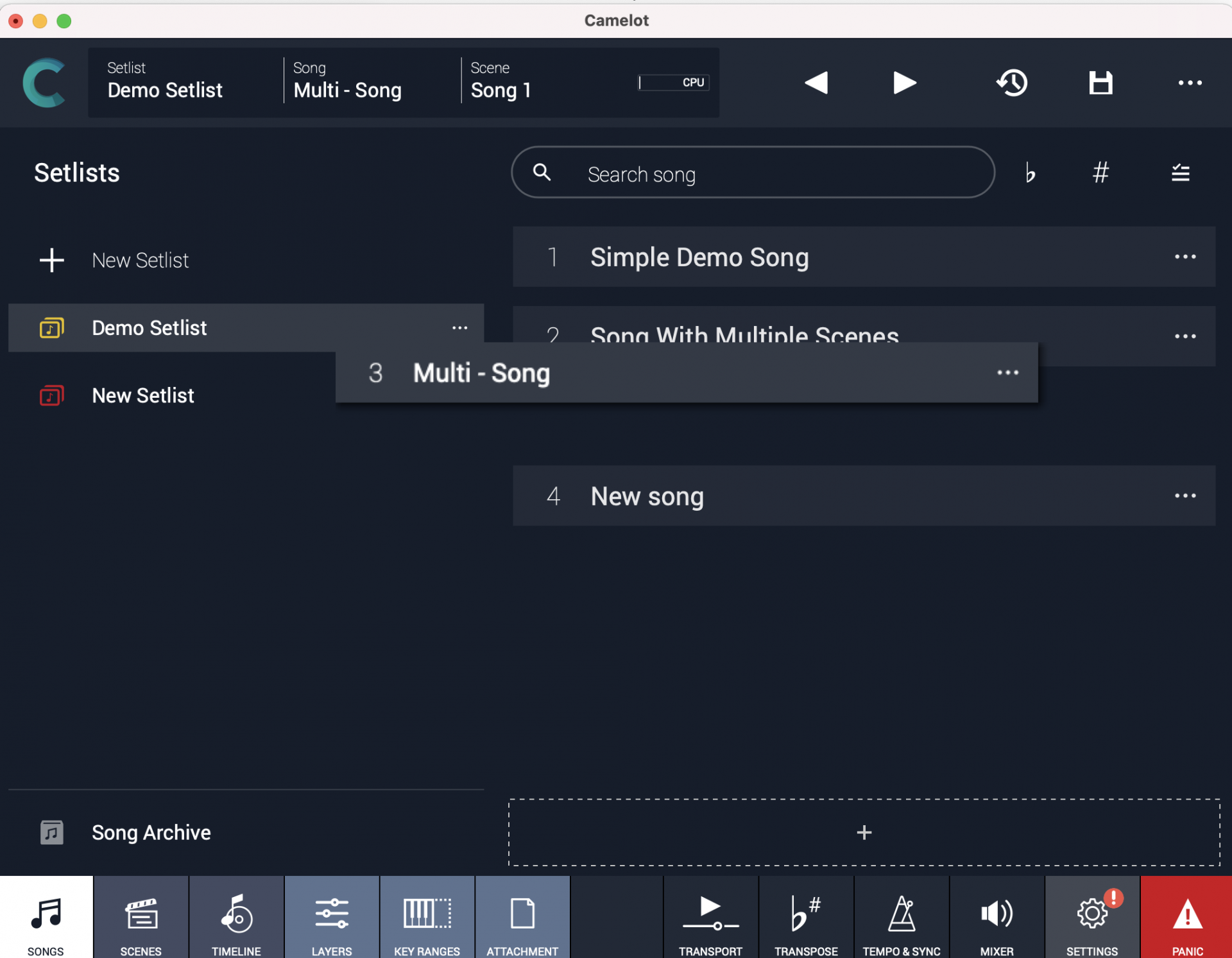
Rearrange, Move, and Duplicate Songs with Drag&Drop, directly on the Setlist.
With Camelot 2.0 Drag&Drop editing has been extended to Layers, Items, Backing Tracks, and Timeline elements.
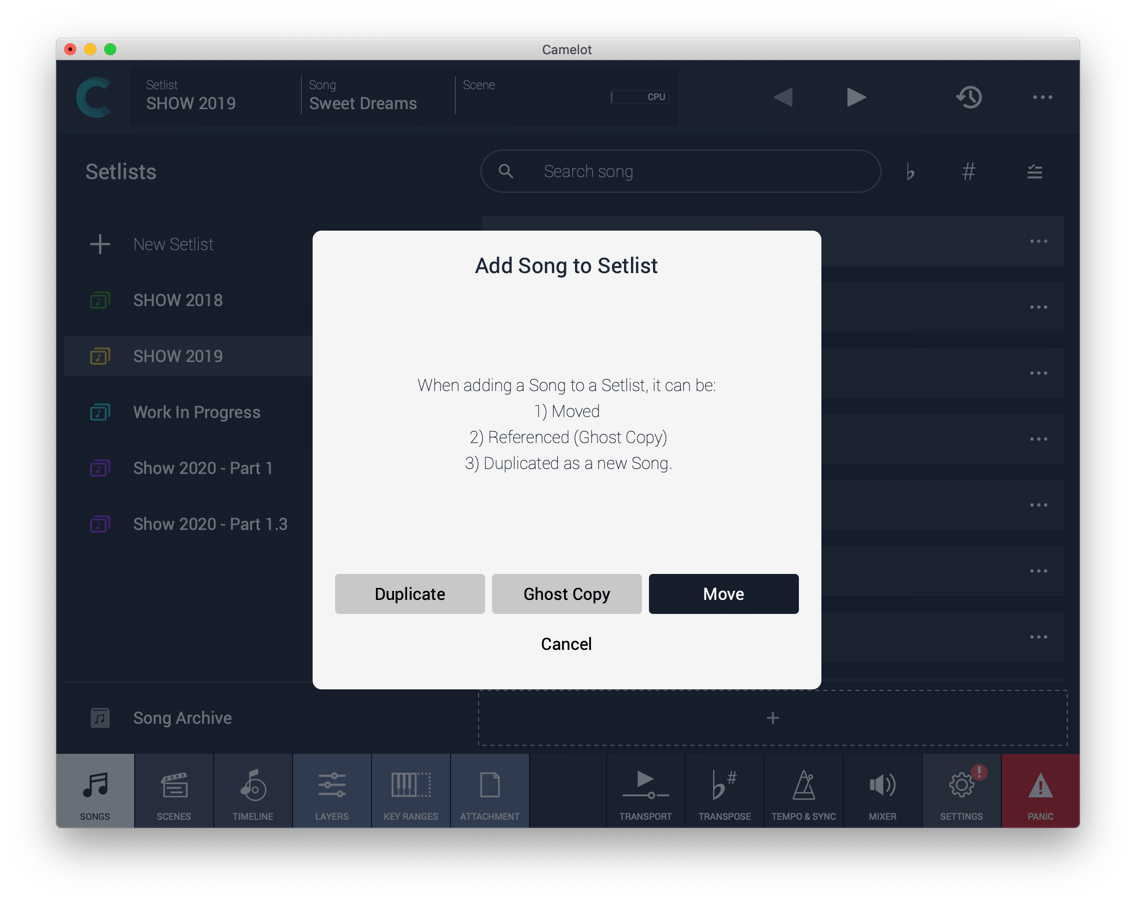
Move, Duplicate and Ghost Copies
The same Song can be used in different Setlists, but you can also create a brand new copy for another version of the same Song. You can also have multiple “ghost” copies of the Song on several Setlists and by modifying the Song once, apply those changes to all copies. Of course, you can also just move the Song from one Setlist to another.
 Import / Export
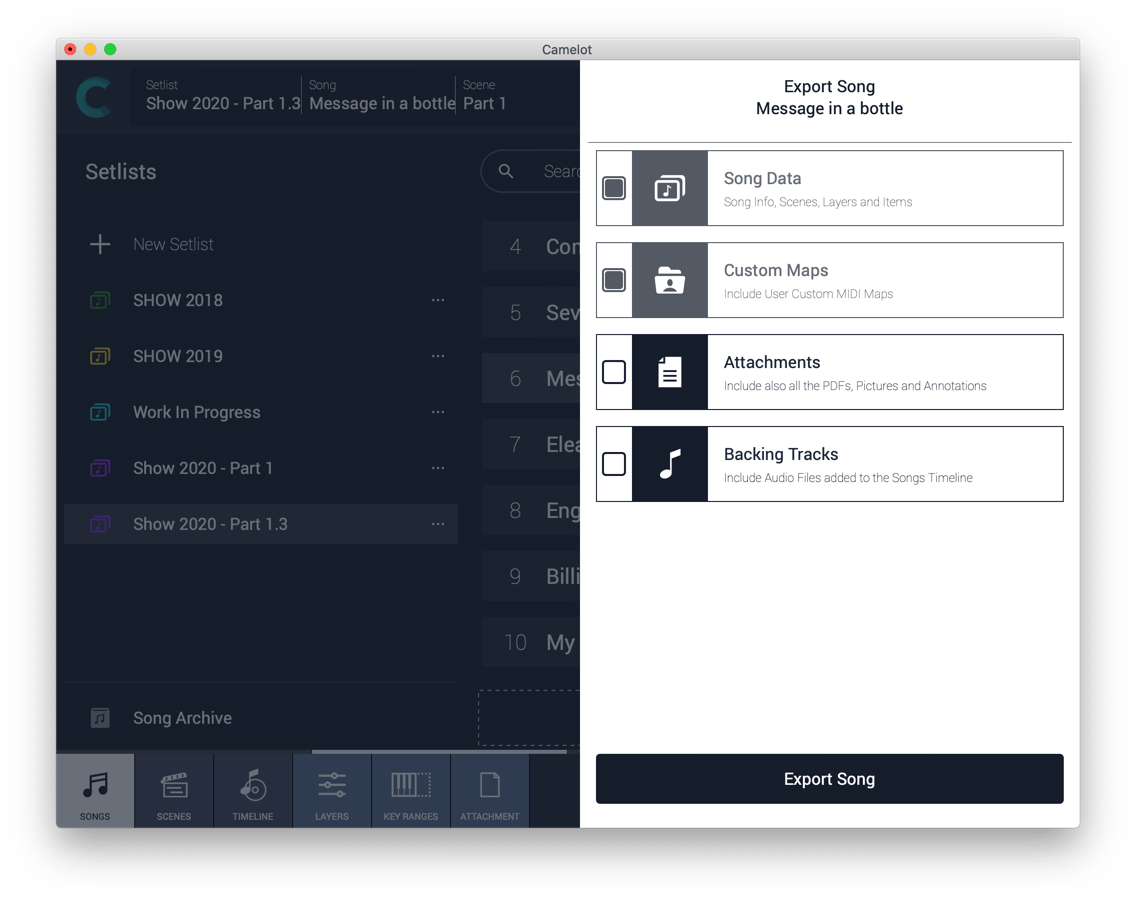
If you want to manage Setlists and Songs separately as different projects, you can export and import them with a dedicated function that allows you to choose whether you want to include or not include any attachments or audio files. This feature is convenient if you want to share the Setlist with a band member without the audio files or to sync Master and Slave Camelot instances running on different devices without loading redundant files.
Crystal Clear Data Organization
- The Setlist is a collection of Songs.
- Songs can have one or more Scenes that each include a Timeline. When you select a Song in Camelot, you load all the resources needed to play that Song i.e., Virtual Instruments, FX, and Audio Tracks.
- Scenes recall and organize Hardware instruments presets, MIDI connections, Software plugin presets, and Music Score Attachments. You can switch freely from one Scene to another without Sound interruptions.
- Layer & Items are the building blocks of each Scene. Layers allow the connection between MIDI Input Controllers and the Items like HW or SW Tone generators. Layers manage the MIDI and Audio flow for all the Items that are loaded on them. It might be easier to think of Layers as Audio channel strips with Insert FX and MIDI patch cables. When you switch from one Scene to another changing the Layer’s Configuration, is like having a virtual stage tech reconnecting Audio and MIDI cables instantly!
Templates
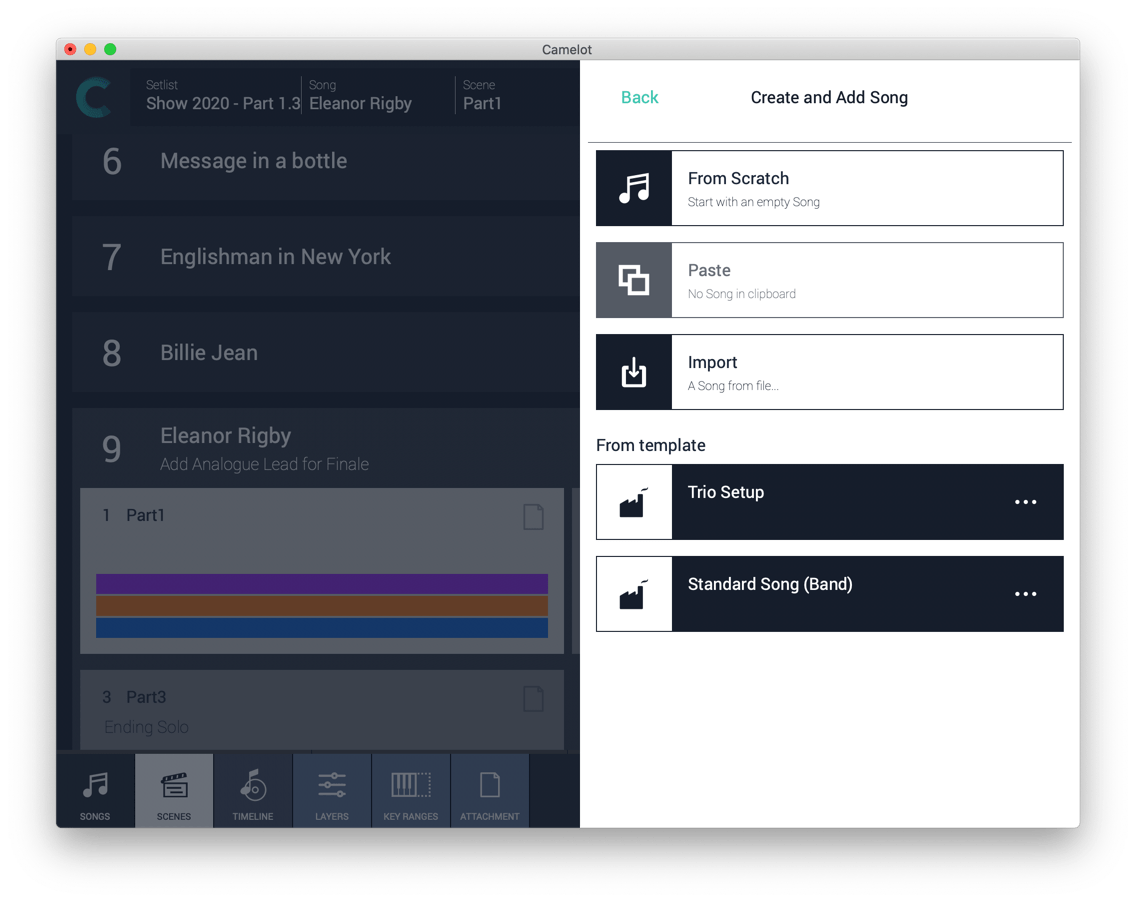
Songs, Scenes, and Layers can be easily created by custom Templates. When you have created a good starting point for your project, just add it as a Template so you can speed up your Show preparation.
Song & Setlist Racks
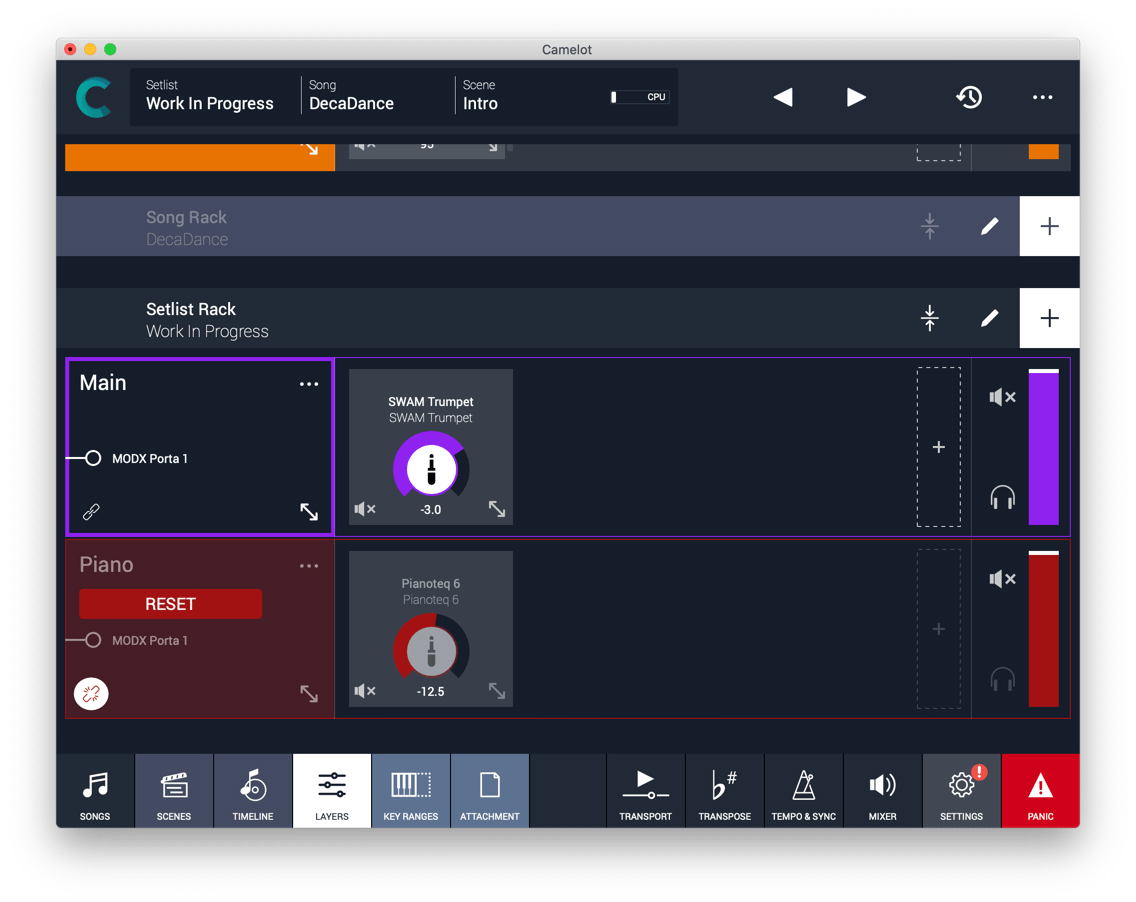
Loading Instruments and configurations on a Scene that can be switched is powerful and flexible, but sometimes you need something that stays loaded during the entire Song or even on the entire Setlist! For that reason, Camelot provides Setlist Racks. For example, load a Grand Piano Instrument at the beginning of the Show without the need (and waiting time) to re-load and unload it. If you need to adjust levels or mute/unmute Rack Layers and Items for each Scene, you can press the “unlink” button to detach the Layer levels from the master value and apply an exception only for the current Scene. This way you can reuse Virtual Instruments and Configurations that have different settings.
Snapshots & Backups. Keep Your Work Safe
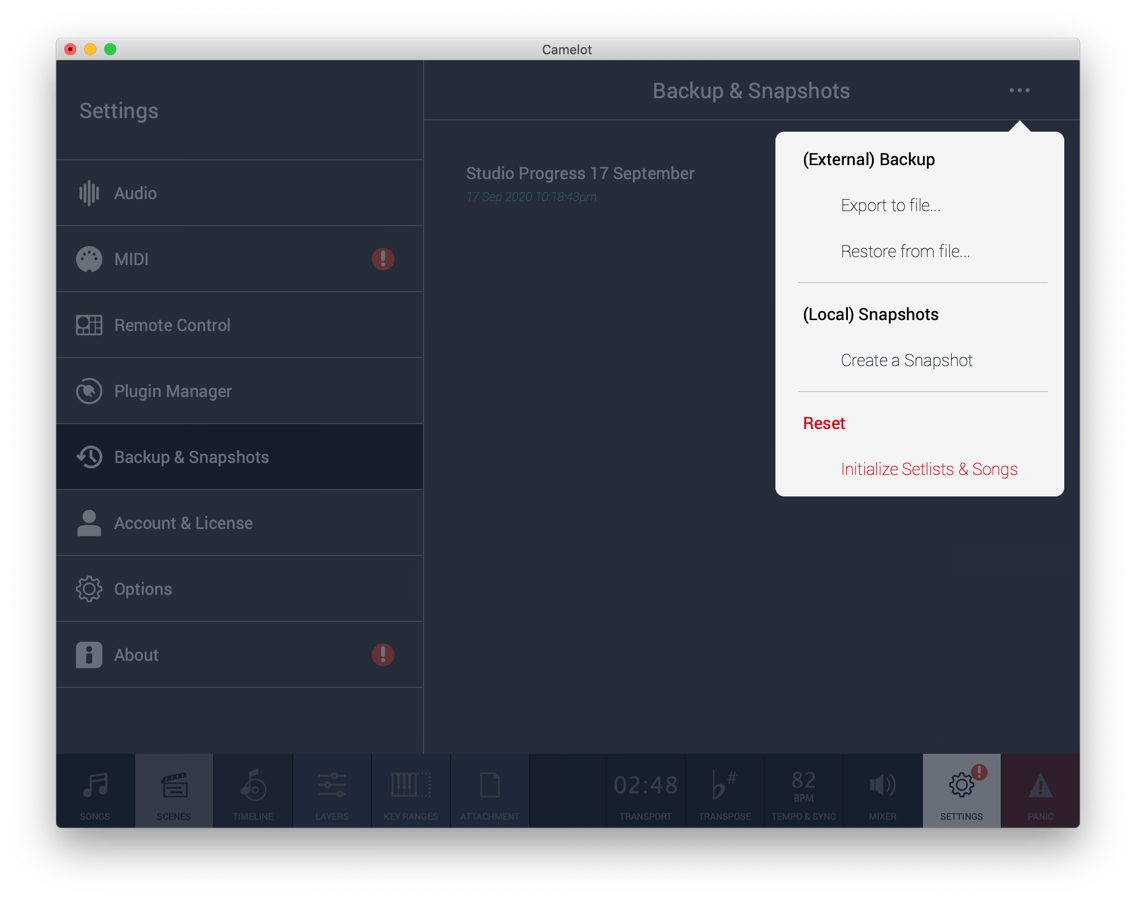
Camelot has several tools to save your work or create backup instances ready to support you on another device. The Snapshots are not copies of the data, only a picture in time of how the data was organized. You can create different Snapshots to go back in time when you are editing your Setlists and want to compare different versions. Snapshots are also useful when you want a clean starting point before the Show. For example, if you tweak and adjust items during the performance of your Songs but you do not want to keep those adjustments for the next Show. Backups are a copy of the entire Camelot session in one convenient zip file. Save the backup file in another drive or on the cloud to keep it safe. You can restore the Backup file in any other system running Camelot, even on a different operating system (with few limitations).
Was this article helpful?
That’s Great!
Thank you for your feedback
Sorry! We couldn't be helpful
Thank you for your feedback
Feedback sent
We appreciate your effort and will try to fix the article