Play with Software Instruments Plugins
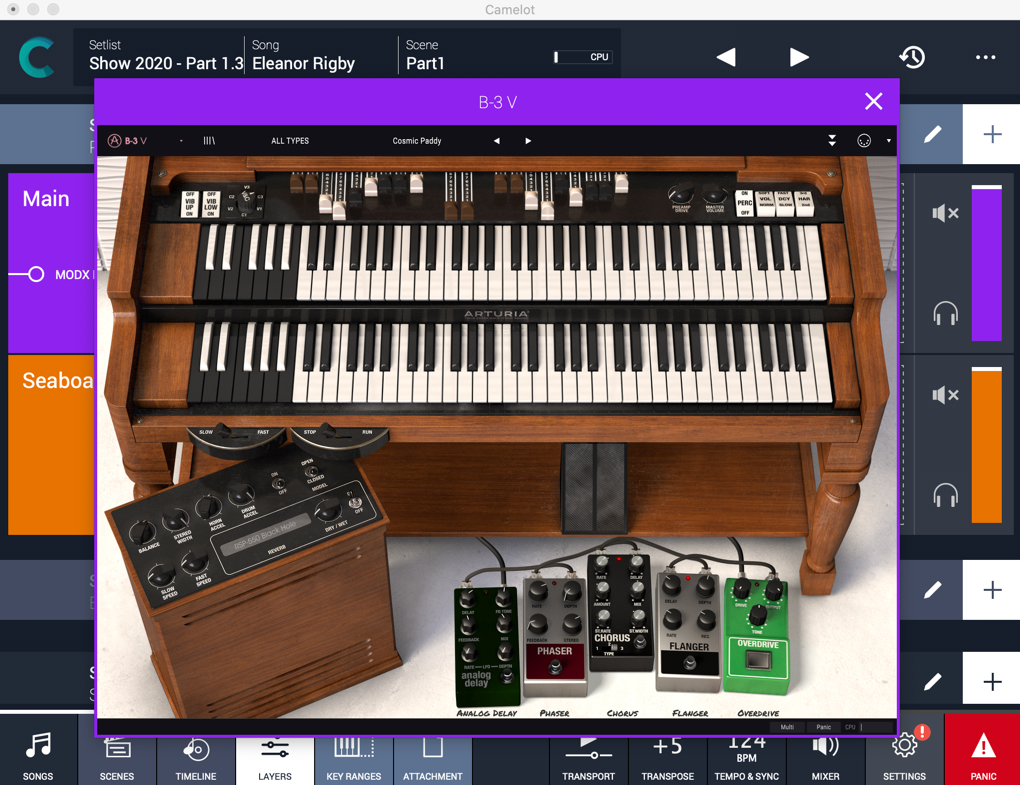
Extend your sonic choices by adding Software instruments to your performance. Depending on your system, Camelot allows you to host plugin instruments on each scene. On laptop/desktop systems (Windows and macOS) are available VST and AU formats, on iPad (iOS) Audio Unit v3.
Mix the Audio Layers
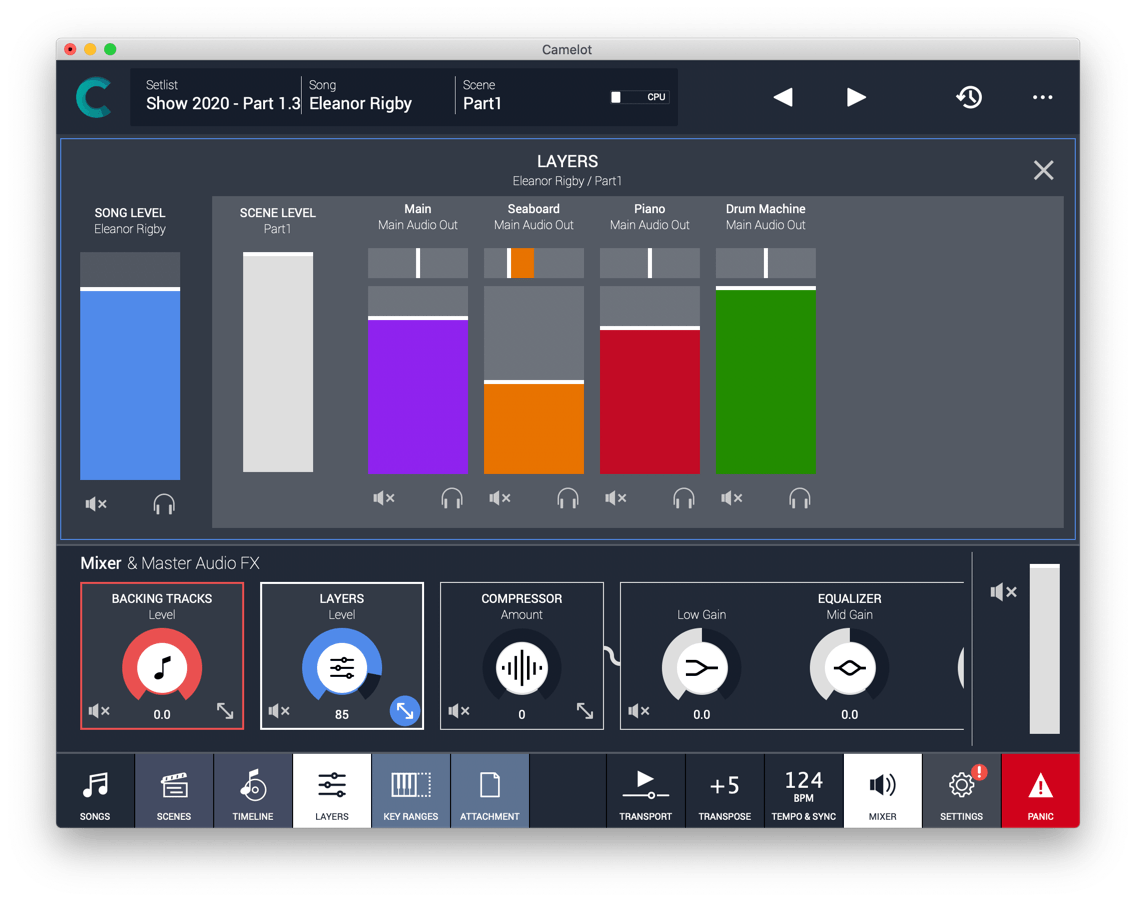
Camelot can generate sounds by playing Software Instruments and also playback Audio Files for backing tracks. Software Instruments are loaded and controlled on each Scene from the Layer View. In this section there are local faders that allow direct control for each track level, mute or solo options, and access to the output settings, to select the output channels. You can also have the big picture on mixing with the convenient Mixer expandable panel on the footer.
Apply Insert FX Plugins
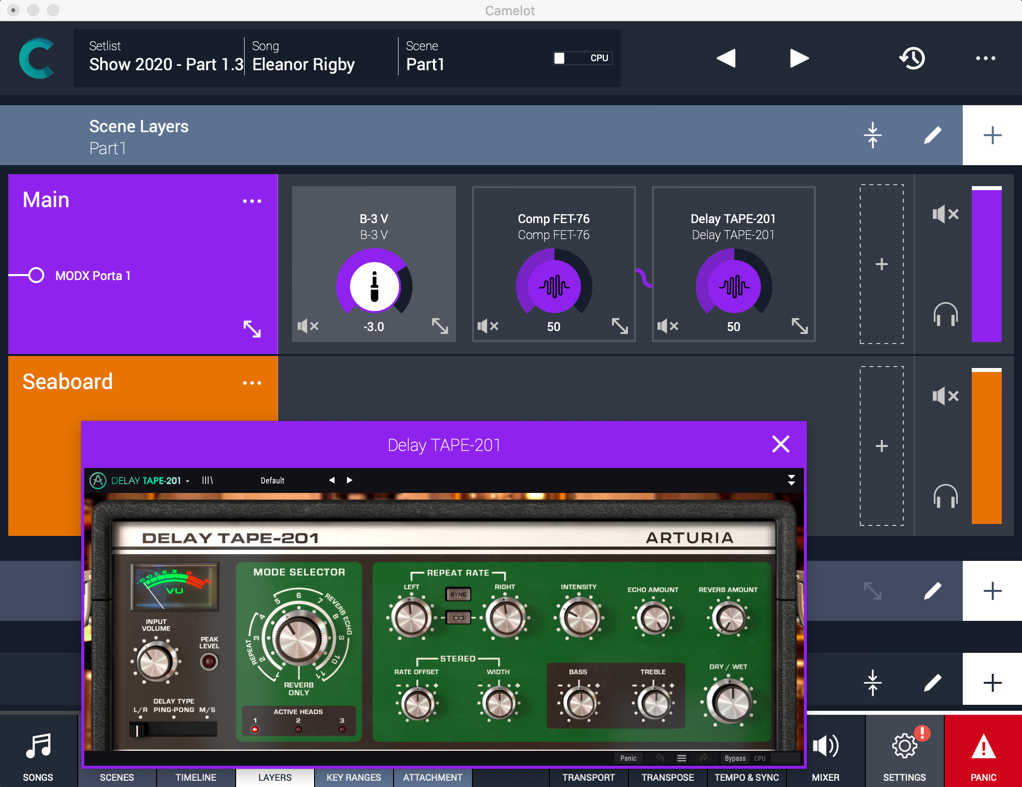
Extend your sonic choices by adding Software FX to your performance. Depending on your system, Camelot allows you to host plugin instruments on each Layer as an Insert FX. On laptop/desktop systems (Windows and macOS) are available VST and AU formats, on iPad (iOS) Audio Unit v3.
Audio Routing and Outputs assignments
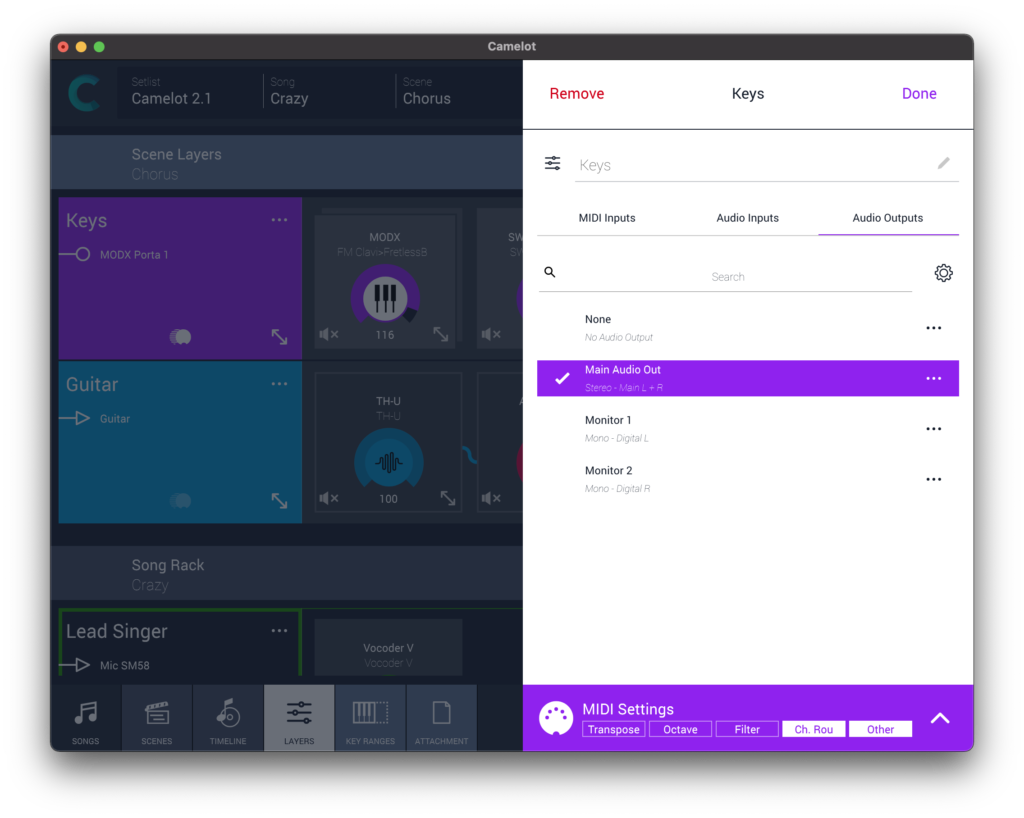
By default, any Layer is assigned to the Main Audio Output. You can always change the output used for a Layer by clicking on the output shown for the Layer in the Layers view. But there’s much more to the Main Audio Output! Any Layer can benefit from the Master FX (compressor, EQ, delay, and reverb) available for processing audio sent to the Main Audio Output. The convenience of these onboard FX can’t be overstated. The Master FX settings apply to the entire Setlist, so you can adjust your mix at each show to ensure you sound the same with each sound system and venue as you did in your studio or during rehearsals. This straightforward workflow is great most of the time, but bypassing the Master FX is easy when you need more flexibility. Output assignments are flexible, too. The Main Audio Outs can be set to play through any available channels, and multiple outputs can be selected for each source item to provide quick monitoring of any track.
Was this article helpful?
That’s Great!
Thank you for your feedback
Sorry! We couldn't be helpful
Thank you for your feedback
Feedback sent
We appreciate your effort and will try to fix the article