Advanced MIDI Channel Routing, Filtering, Transposing and Octave Shifting
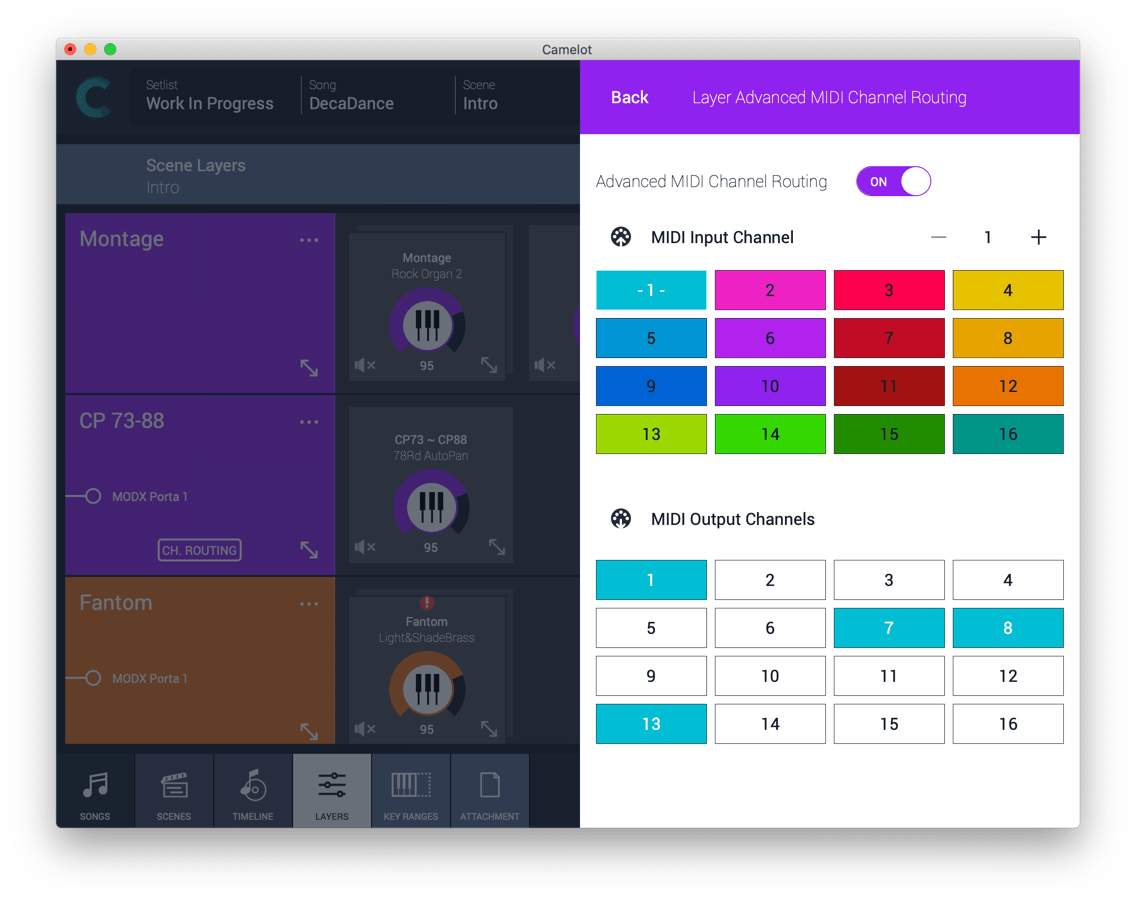
Layers and Items have a dedicated MIDI Settings section that can Transpose, Octave Shift, Filter unwanted MIDI events, and route/replicate messages from one input channel to another. This MIDI routing and processing unlocks endless combinations. Imagine playing your instruments from one controller in one Scene, then switching seamlessly to another configuration that plays other tone generators and audio effects. This is all done without the need to unplug and re-plug MIDI cables on the fly!
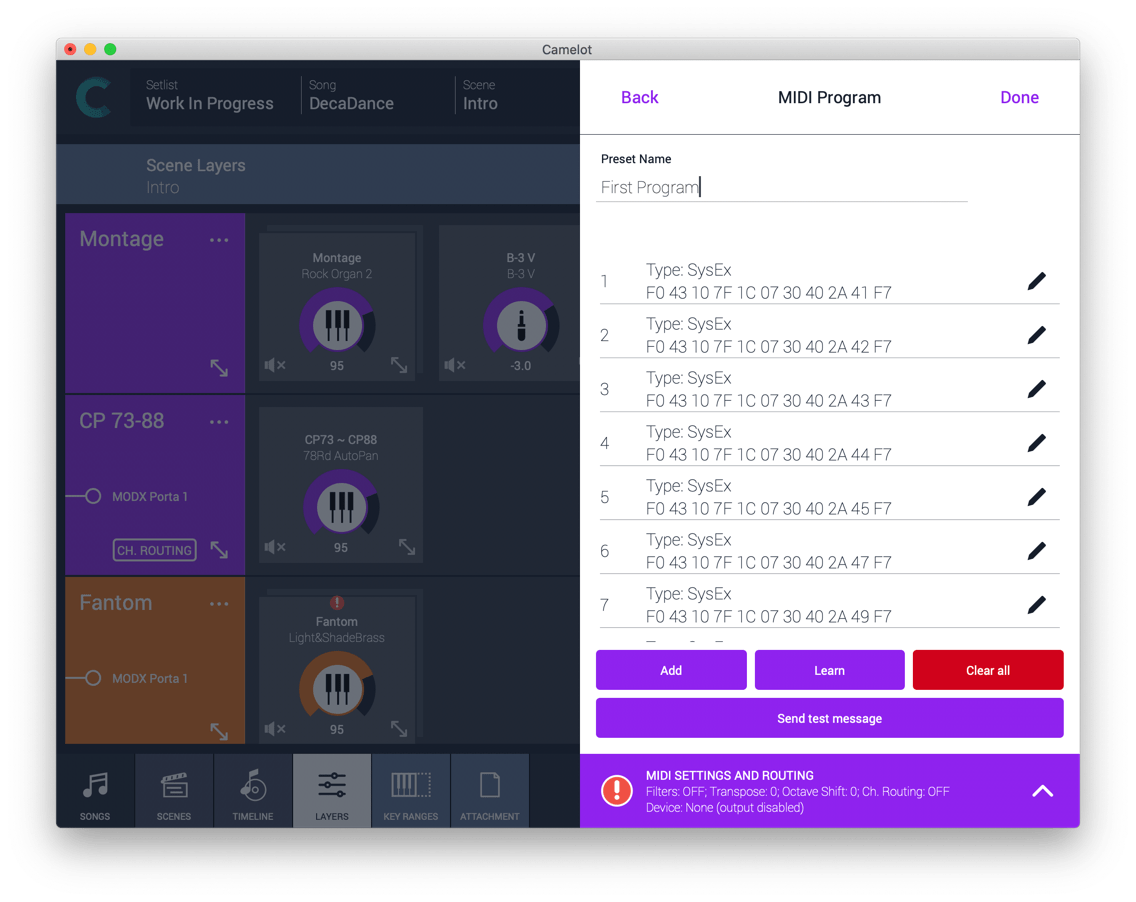
Type, Edit or Upload Sysex messages
The advanced MIDI item allows you to generate a wide choice of massages, including Sysex. You can also learn and playback the list of messages just recorded.
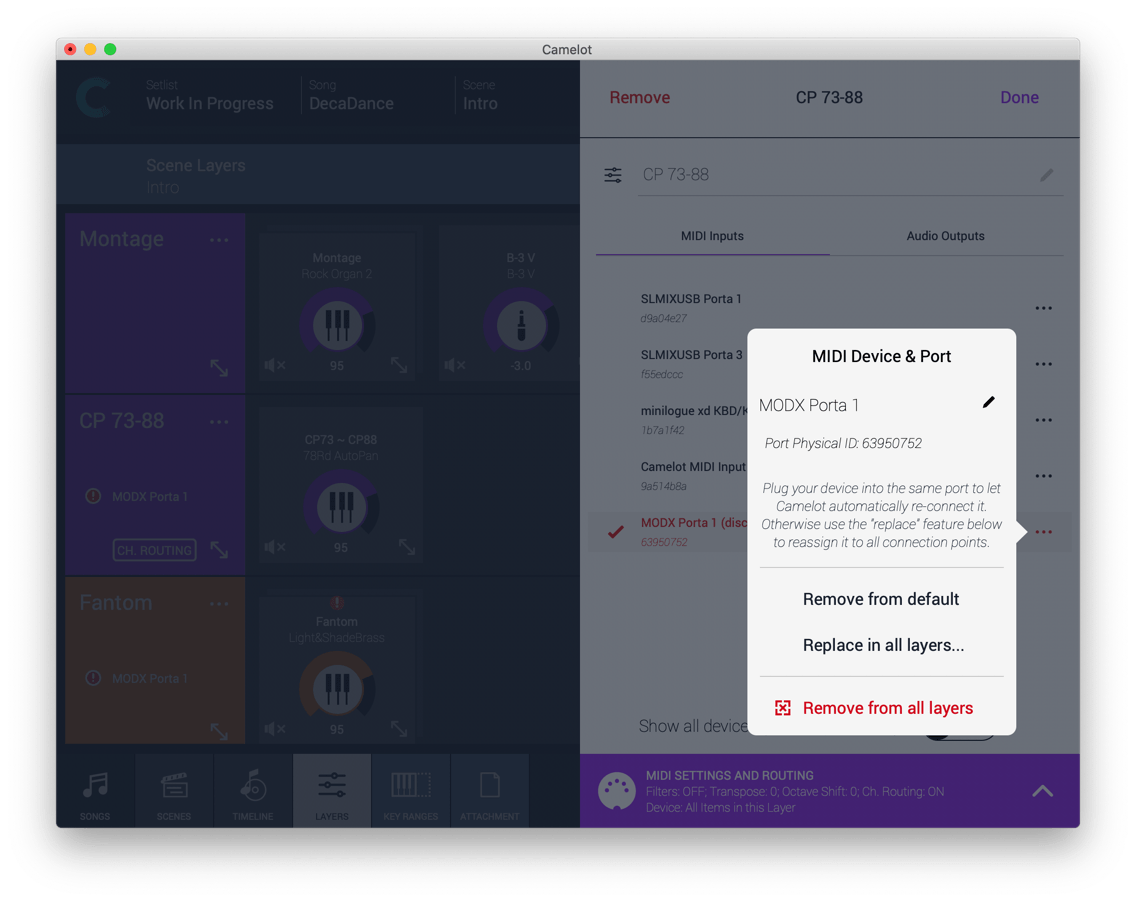
Assign, replace and reconfigure MIDI inputs and output ports
The MIDI Port Manager is the best ever created, and it does not rely on aliases or technicalities. When a MIDI port is not detected, a red badge pops up to quickly address that issue. You can either replace the missing port or reconfigure your setlist with different Hardware. You can do all of this with one button. Easy.
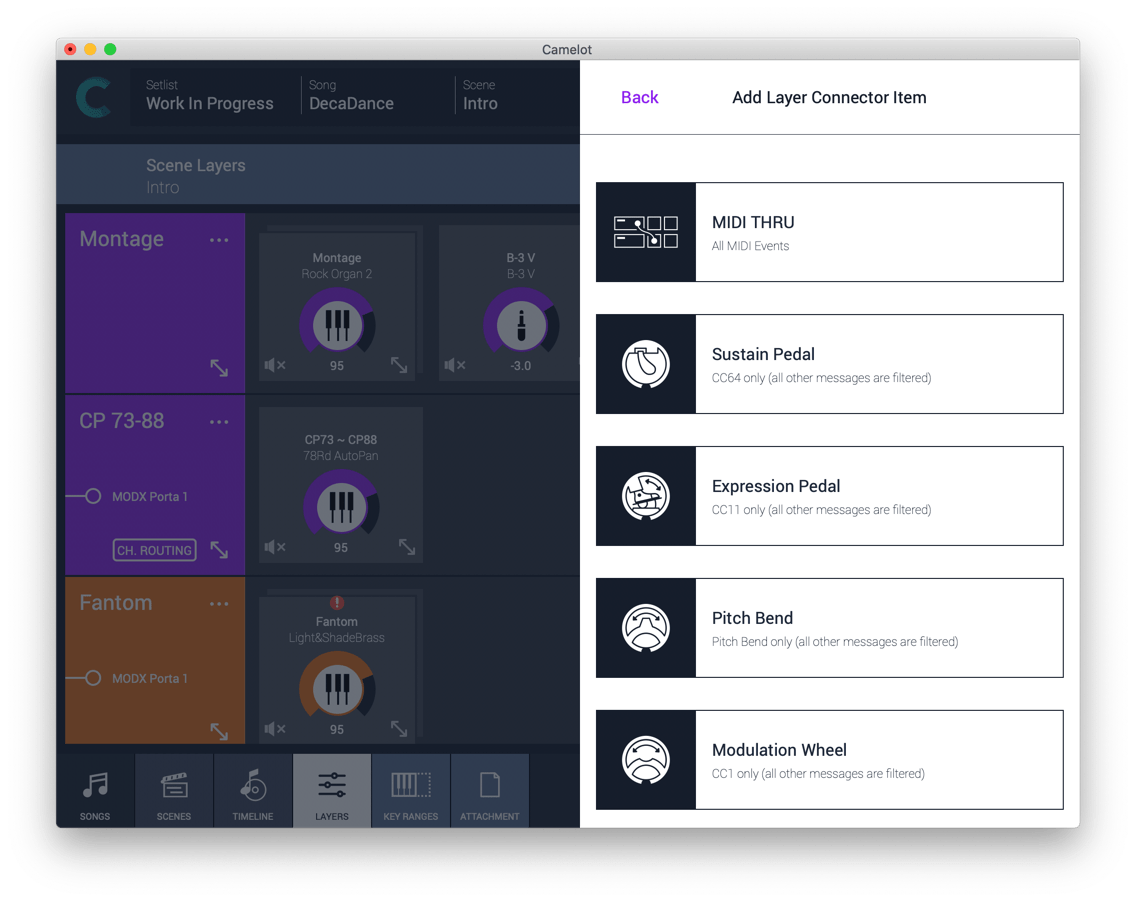
Layer Connectors
Layer Connectors allow cross-connection and MIDI bridges between layers. For example, you can have only one sustain pedal connected to one device and use it with all devices that are played by another controller.
MIDI Timing and Redundant Messages Management
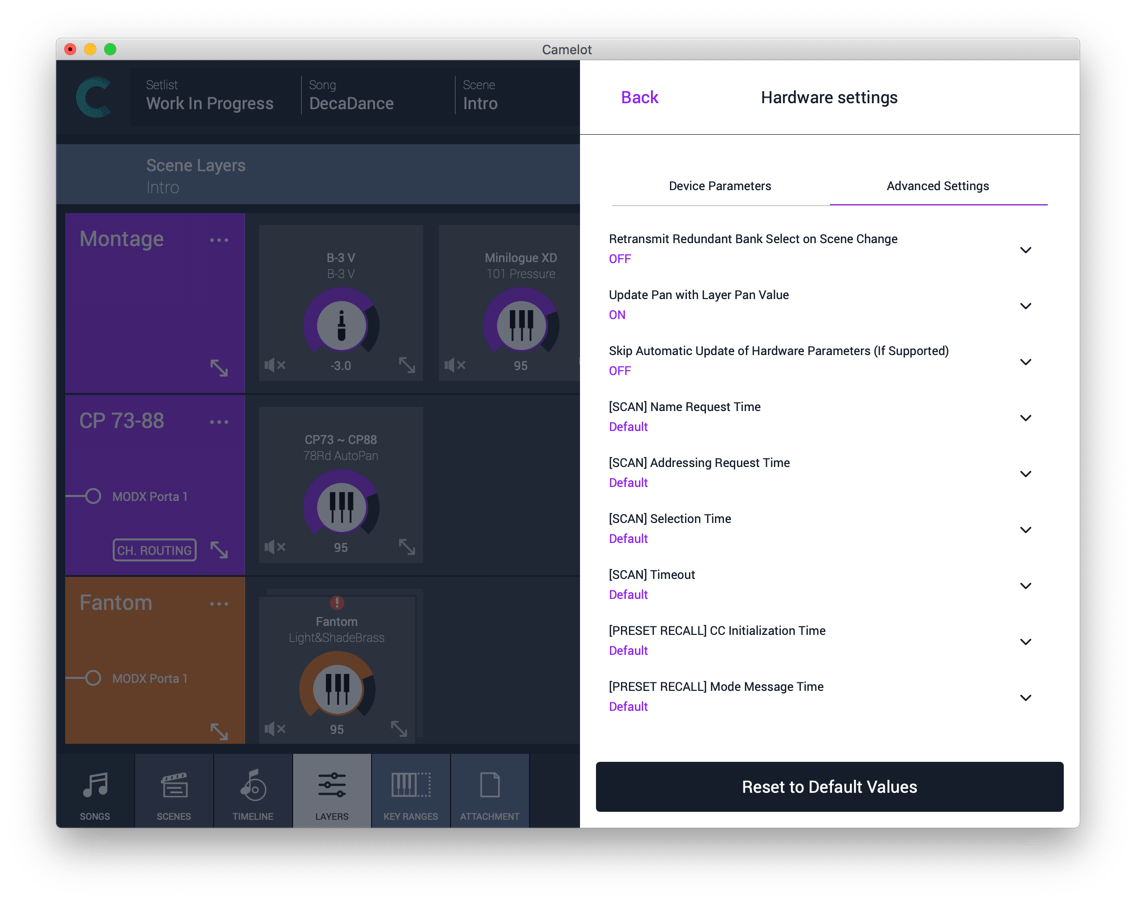
Dealing with Hardware Instruments is challenging when you want to unify and control different devices, made by different manufactures. They have different MIDI implementations but also respond to commands in different ways. For example, some devices need more time between Bank Select and Program Change Messages to work properly. Some Devices need to not receive redundant Bank Select messages otherwise they interrupt the sound. For this reason, we have tested many devices and applied a default choice that should be perfect for most cases. In special cases where you need to go deeper, Camelot can help you set up the MIDI Transmission Time (the option of resending redundant MIDI Messages). Discover them under the cog menu on the Hardware Instruments preset list.
Virtual MIDI IN & OUT
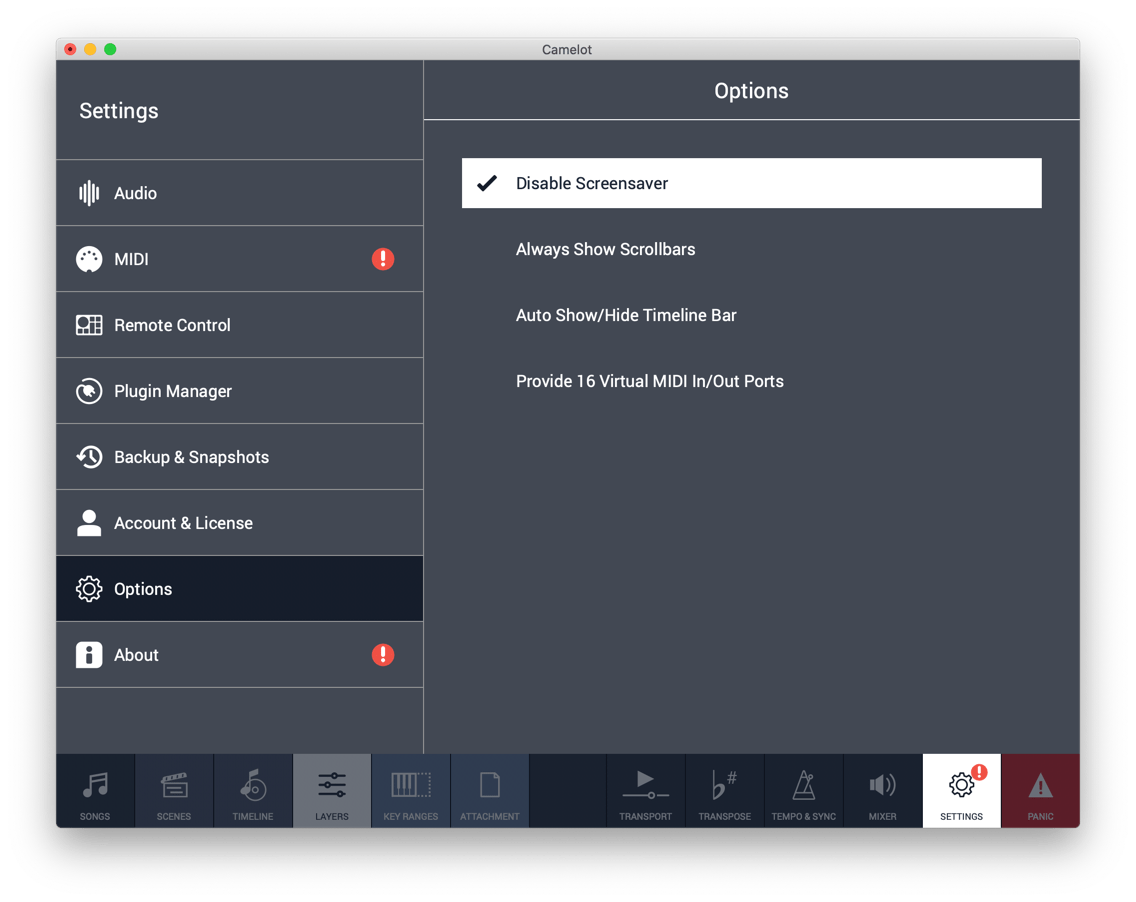
Control Applications running in background that cannot be hosted with virtual MIDI Ports. On the Options Settings, you can enable up to 16 ports.
Remapping table
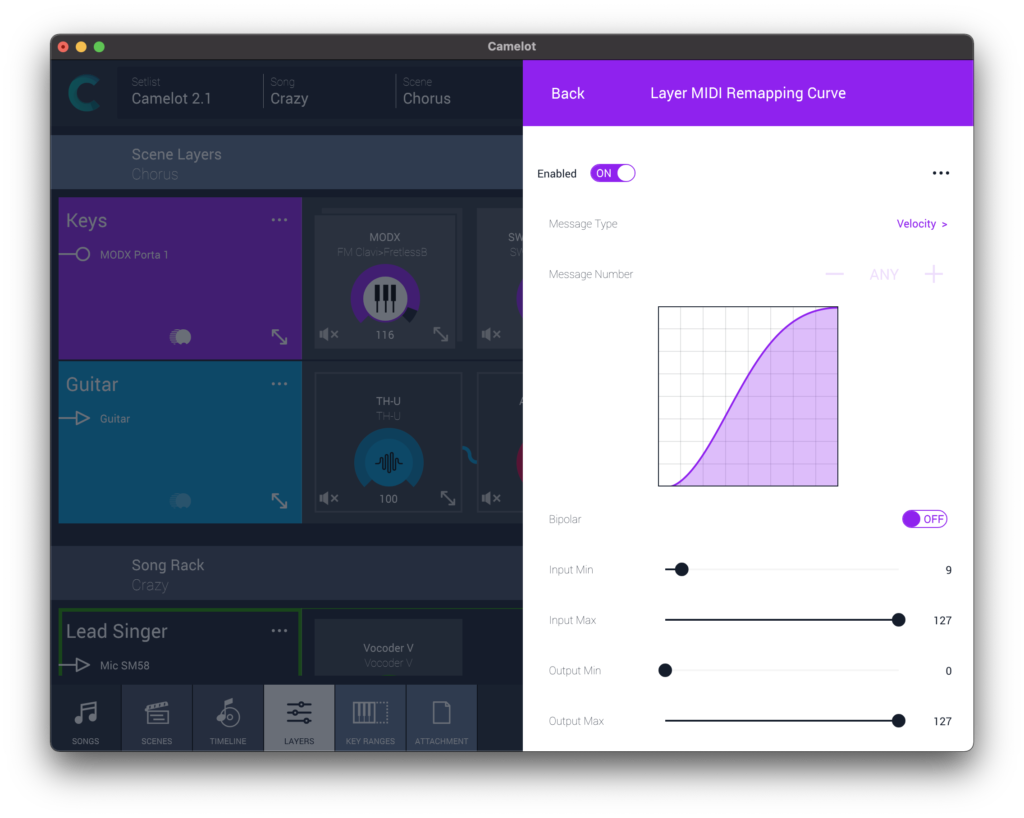
Remap/rescale any CC or Velocity curve. If you are playing a hammer-action keyboard , you can have a different velocity curve to play a synth solo by using a Remapping Table on your synth solo Scene,, or you could globally assign it to the device you use.
Control and Map ANY MIDI Device
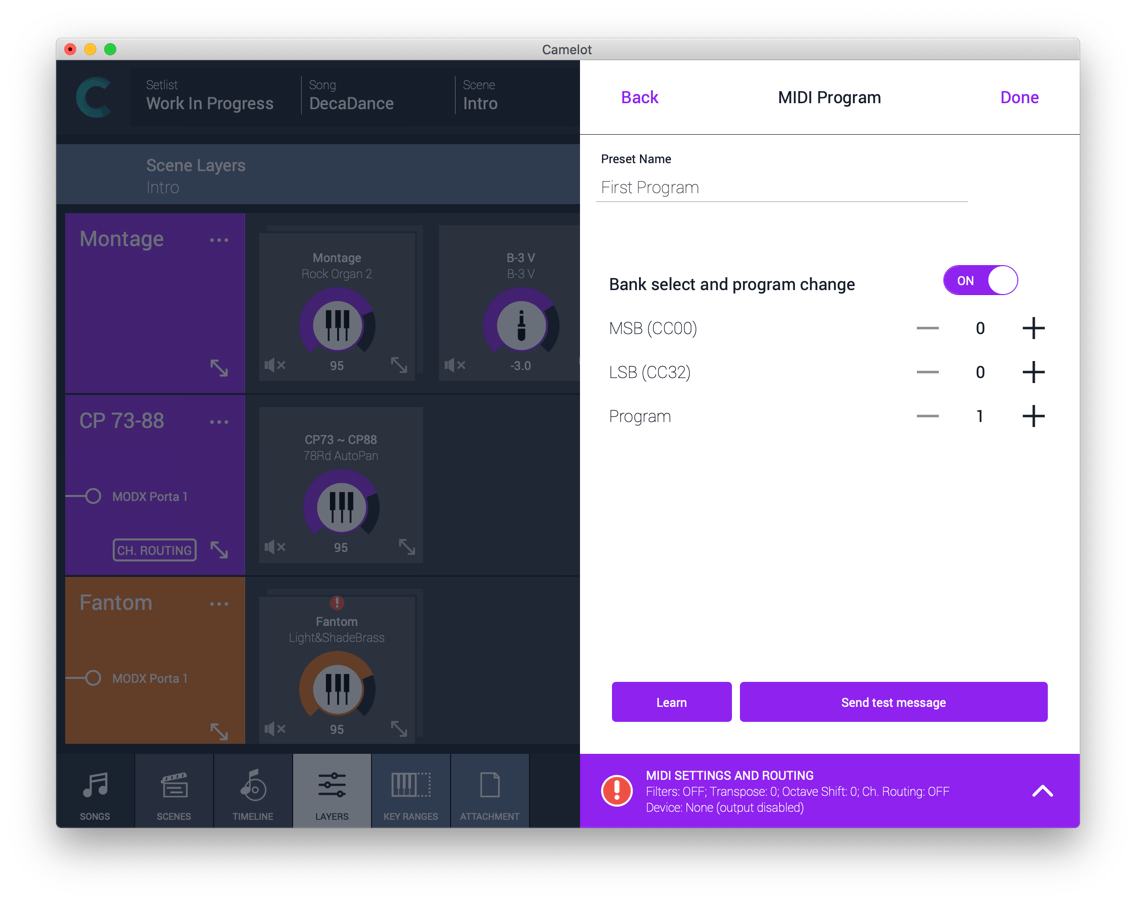
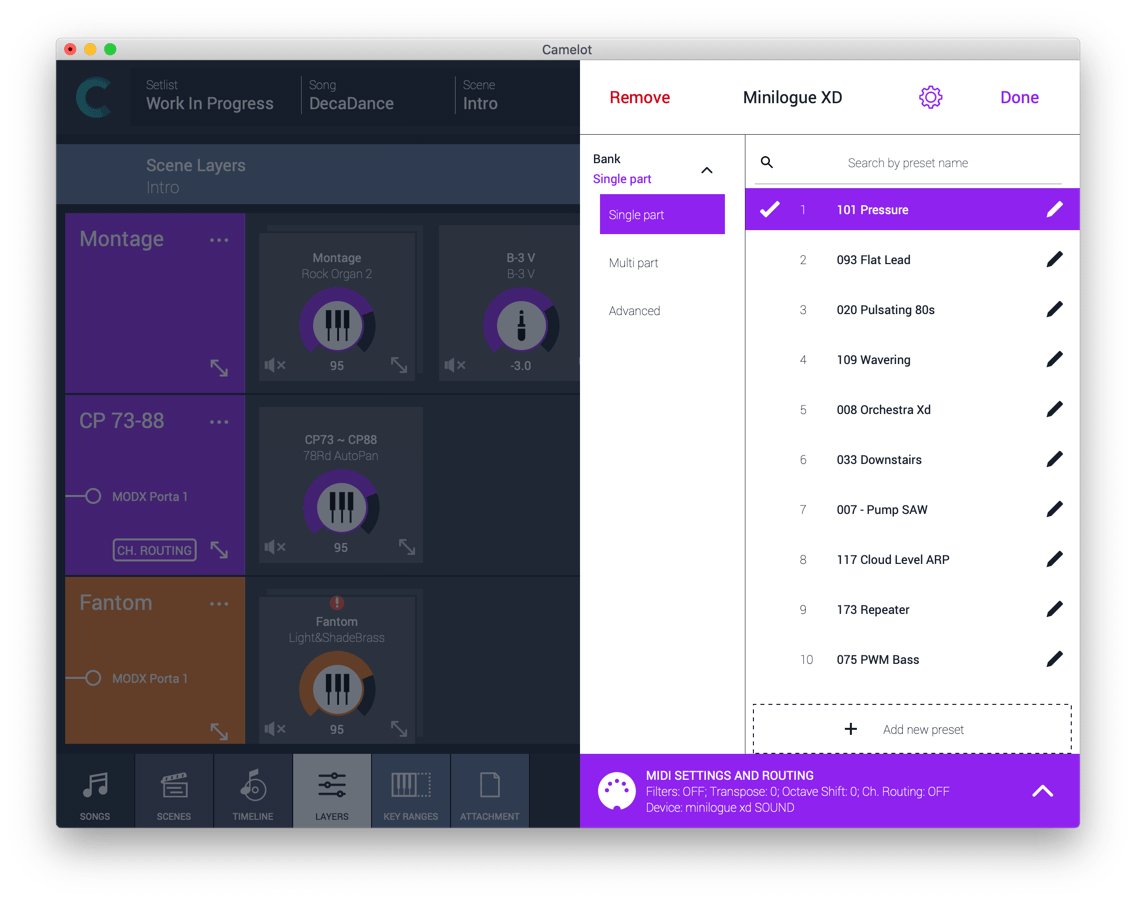
All MIDI Instruments are supported in Camelot, even if there is not a smart map yet. You can use Program Changes and Bank Select messages to manage your MIDI Instruments. It is possible to create Single Part Item (simple and standards ) but also Multi parts items that can manage a Combi/Performance program with subparts settings.
 Create your own MIDI Device Map
Organize and recall MIDI generic and advanced items with ease. All the MIDI items in use can be added to a Custom Map for reusing. Click or tap on “add to custom” map button on each MIDI item panel.
MIDI Monitor
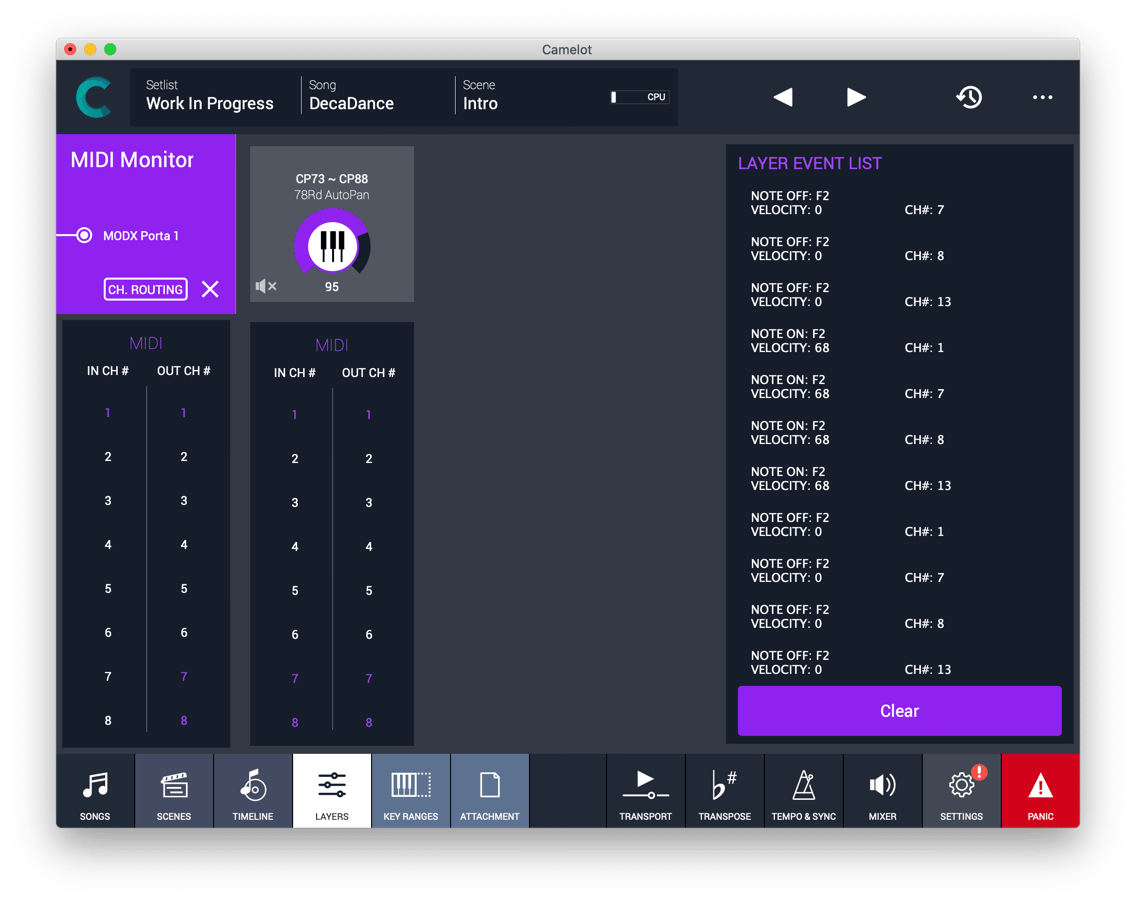
From the 2.0 version of Camelot, MIDI is even better. We introduced a MIDI monitor on each layer so you can easily check your connection and advanced channel routings.
Remote Controls: level mapping
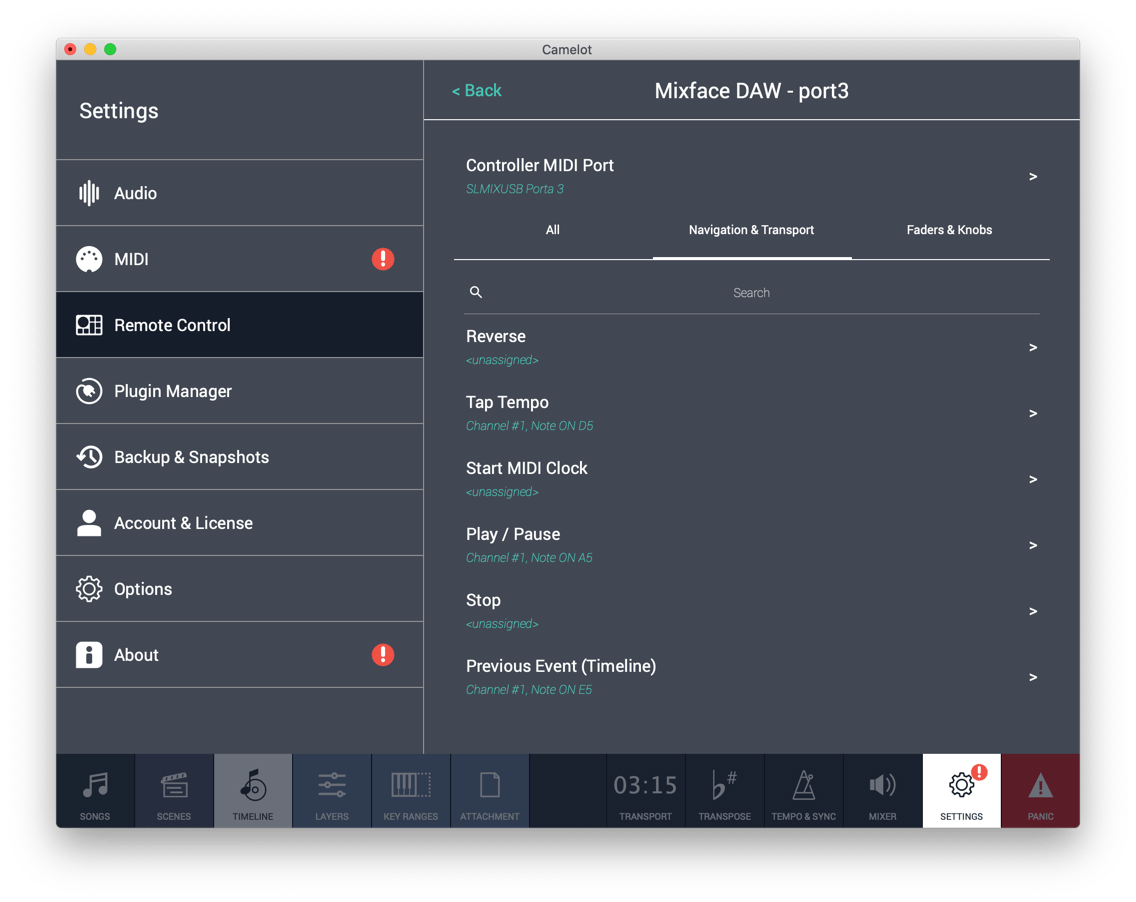
From Camelot 2.0 we extended the Remote Controls to the Master Levels, the Layer and Backing Tracks faders, and Item’s main Knob, giving you the opportunity to keep the most important levels of your live performance under control. Level mapping can be considered a simple problem to solve. Many production DAWs have a MIDI Learn mapping feature to assign a parameter to an external MIDI Controller. On a Live Performance Setlist, this seemingly simple approach fails because each song could have a different layer and MIDI configuration. This makes one to one mapping a frustrating and never-ending task to do in pre-production and also proves to be inefficient and difficult to use on stage considering that you need to remember many custom configurations. The human brain usually can manage and remember a few things at a time, so we decided to provide a simple mapping system based on a track’s order. Just map the 1st Layer Level to your controller once and it will be the same for the entire show. Easy and quick to do, easy to remember.
MIDI Plugin Processors & FX
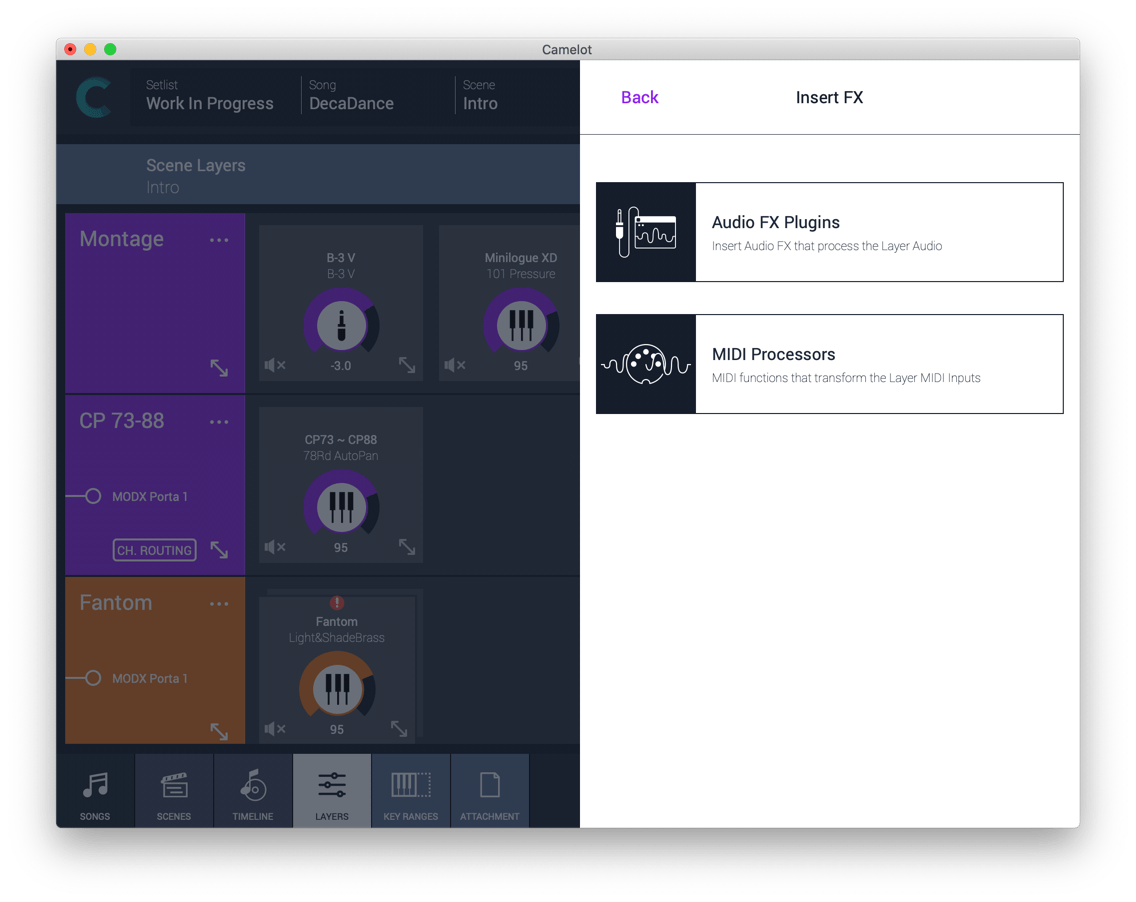
Load MIDI Processors (like arpeggiators for example) at the beginning of any Layer. In this way, you can transform your layers’ MIDI Inputs and feed the Items in a very creative way. It’s easy: MIDI FX is available in the add Item menu when adding Insert FX.
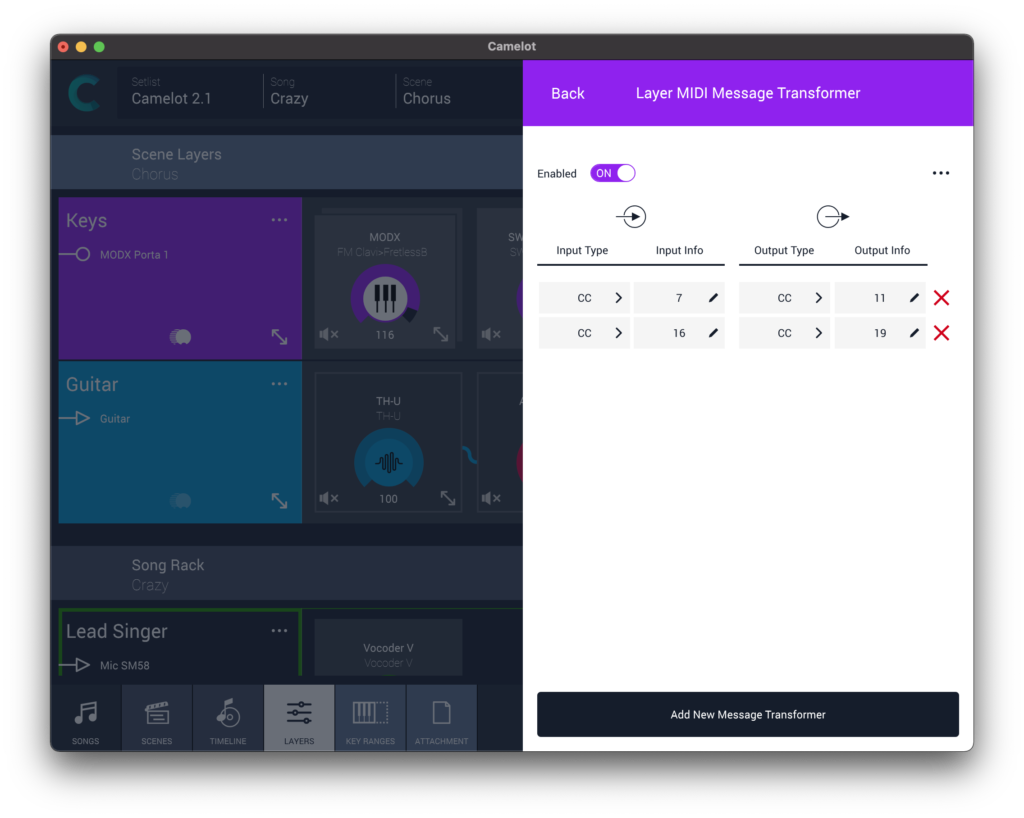
Message transformer
Converts a continuous controller message from one CC number to another. This can be useful, when you need to an expression pedal to generate a different CC message in a special scene, or when you need one pedal to change two instruments that use different CC numbers for the same action, e.g. CC7 or CC11 for level.
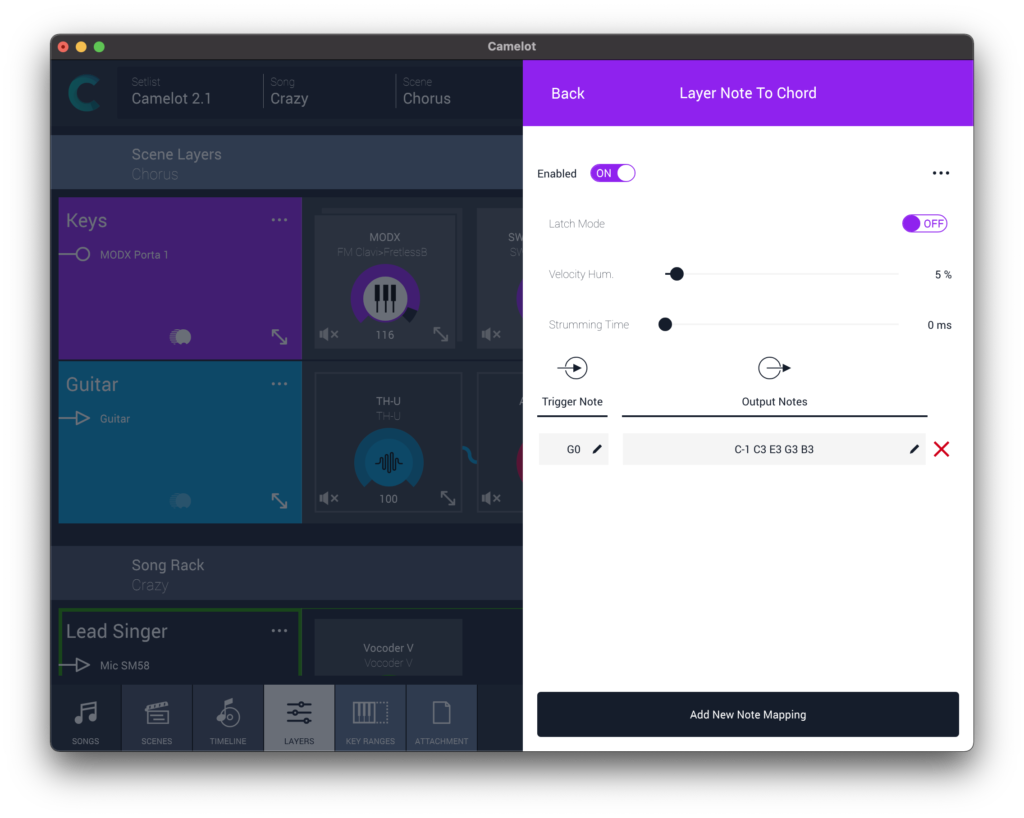
Note to chord
Triggers a chord by pressing one note…with interesting humanization and creative options.
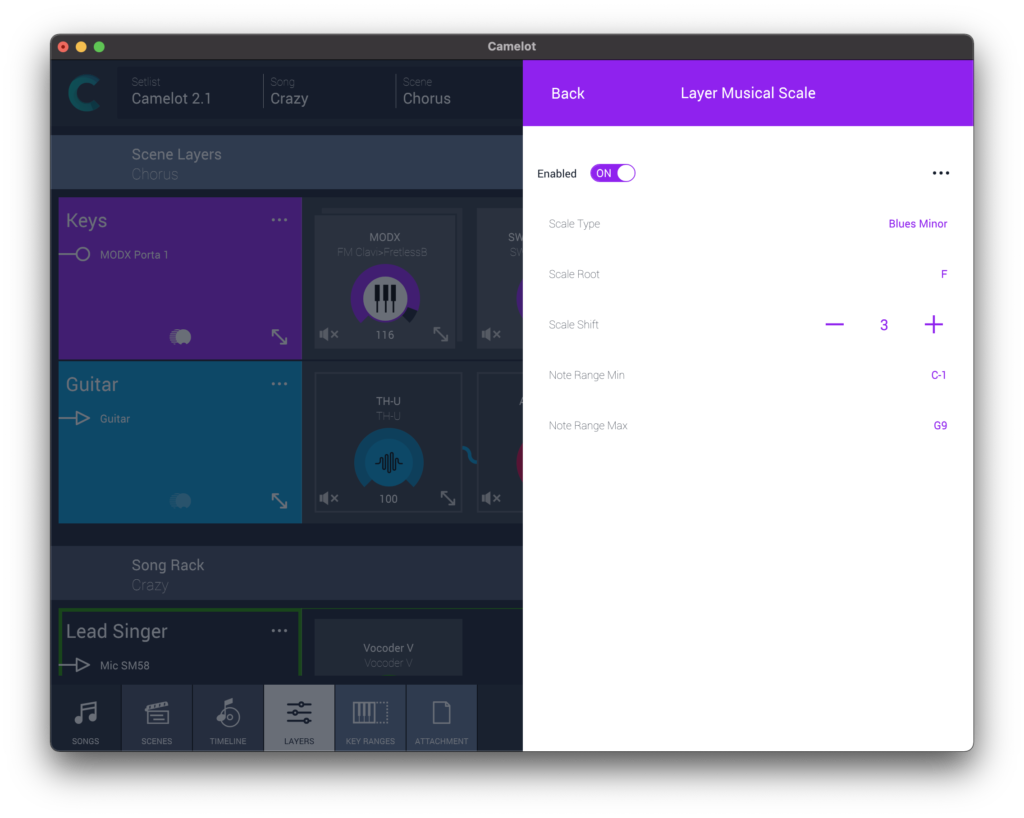
Musical scale
Easily play different scales or harmonize/shift parts to an alternate musical scale.
Was this article helpful?
That’s Great!
Thank you for your feedback
Sorry! We couldn't be helpful
Thank you for your feedback
Feedback sent
We appreciate your effort and will try to fix the article